Dealing with a slow home Wi-Fi connection can ruin your productivity and disrupt your daily routine. Consequently, many remote workers immediately blame their internet service provider when a video call drops or a webpage fails to load. However, the true bottleneck rarely lies with your external fiber or copper line. In my experience, local environmental factors, old hardware, and poorly configured settings cause the vast majority of wireless performance issues. While internet providers love to upsell you to expensive gigabit tiers, these premium plans rarely solve internal network congestion. Instead, understanding how radio waves interact with your home structure is the key to securing a reliable connection. This explainer breaks down the physics of residential wireless networks and outlines practical strategies to restore your speeds without wasting money on unnecessary upgrades.
Why slow home Wi-Fi happens in modern homes
Furthermore, physical obstructions are the single biggest enemy of high-frequency wireless transmissions. When your router broadcasts a signal, the radio waves must pass through walls, furniture, and floors before reaching your device. As a result, the signal strength drops significantly with every barrier it encounters. This degradation is known as attenuation, which naturally reduces the speed and stability of your connection as you move further away from the broadcast source.
How concrete glass and metal degrade your signal
Specifically, dense building materials absorb radio frequencies far more aggressively than drywall or wood. From experience, concrete walls with wire mesh lath are absolute wireless killers, acting almost like a Faraday cage that prevents radio waves from passing through. Additionally, double-glazed glass windows can reflect signals, while large metallic appliances like refrigerators absorb them entirely. If your router sits inside a wooden cabinet or behind a television, you are severely limiting its effective range. Consequently, optimizing physical placement remains the most critical, yet overlooked, factor in troubleshooting local network slowdowns.
Key takeaway: Physical barriers and dense building materials are the primary drivers of degraded local wireless performance.
Understanding the battle for local airtime
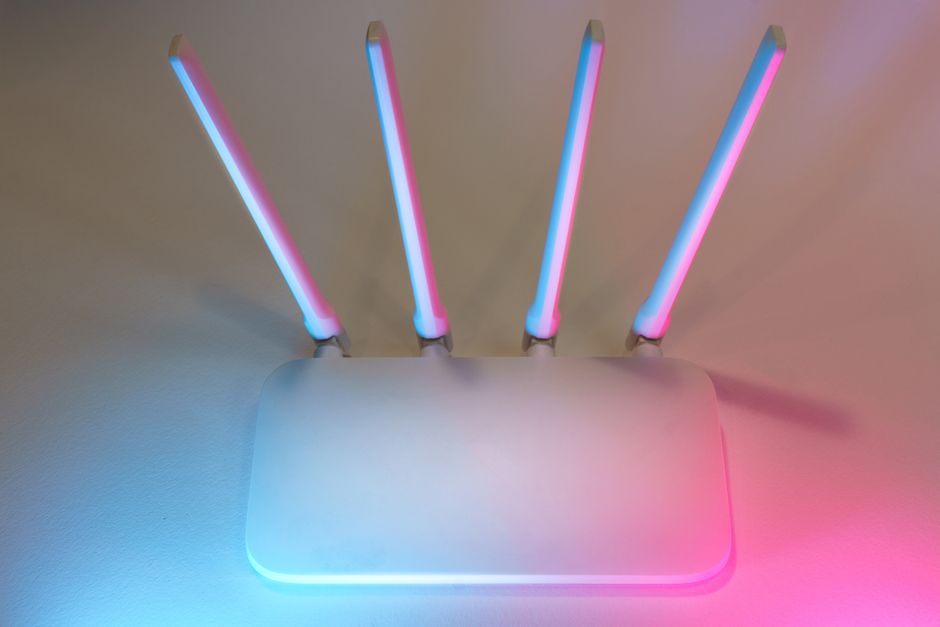
In addition, your network must constantly manage competing signals from nearby sources. Your neighbors’ routers, baby monitors, and wireless security cameras all operate on similar frequencies, creating a noisy environment that degrades performance. Consequently, your devices must wait for a clear slot to transmit data, which leads to a slow home Wi-Fi experience. This delay in transmission creates artificial latency, making your high-speed internet plan feel incredibly sluggish.
The performance profiles of common wireless bands
Consequently, you must look at how different frequency bands operate under pressure. The older 2.4 GHz band offers excellent range but very slow speeds and high congestion. Conversely, the 5 GHz band provides much higher speeds but struggles to penetrate solid walls. Newer 6 GHz bands, supported by Wi-Fi 6E and Wi-Fi 7, offer massive bandwidth but require a clear line of sight. According to a Comcast report (2022), the average household now connects more than 22 devices to their network, which heavily strains local airtime.
| Frequency Band | Max Theoretical Speed | Signal Range | Congestion Level |
|---|---|---|---|
| 2.4 GHz | Up to 450-600 Mbps | Excellent (Up to 150 feet) | Very High (Many devices) |
| 5 GHz | Up to 1300 Mbps | Moderate (Up to 50 feet) | Low to Moderate |
| 6 GHz | Up to 9.6 Gbps | Short (Room level) | Extremely Low |
Key takeaway: Managing device density across multiple frequency bands prevents local traffic congestion from halting your connection.
What a local bottleneck actually costs your productivity
Therefore, the true cost of network congestion is not just slow download speeds, but increased latency and packet loss. When your connection stutters, your computer has to request that the network retransmit lost data packets. As a result, you experience audio lag, buffering wheels, and disconnected sessions. This is why a speed test might show high download capacity while your actual browsing experience remains frustratingly slow.
Real-time video conferencing versus asynchronous downloading
For example, downloading a movie requires high bandwidth but can tolerate minor delays without ruining the experience. On the other hand, real-time video conferencing tools like Microsoft Teams require incredibly stable, low-latency connections to function properly. According to OpenVault (2023), over 90% of household internet traffic is consumed by video streaming and real-time data, which demands continuous, unfragmented signal delivery. When your local network forces devices to compete for airtime, your video call quality drops instantly, even if your total bandwidth plan is more than sufficient.
Key takeaway: Local network latency impacts real-time communication far more than raw download capacity.
Practical ways to resolve your wireless bottlenecks
Fortunately, you can implement several high-impact changes without purchasing expensive new equipment. To solve your slow home Wi-Fi issues, you first need to understand how the signals behave in your specific physical layout. This diagnostic process allows you to make informed adjustments rather than guessing.
Mapping your local environment with software tools
In practice, you can use free diagnostic software to analyze your wireless environment. Specifically, tools like NetSpot or Ubiquiti WiFiman allow you to visualize signal strength and identify crowded channels. Once you identify which channels your neighbors are using, you can manually switch your router to a less congested one. What most guides miss is that auto-channel selection on commercial routers is notoriously bad, often locking onto congested frequencies for days. A common mistake here is choosing DFS channels without realizing that radar interference can cause your router to abruptly drop the 5 GHz band for up to ten minutes to comply with federal regulations. If you need a more robust infrastructure, you can explore professional networking solutions to distribute your coverage evenly.
Key takeaway: Manual channel selection and signal mapping provide the most reliable path to a stable home connection.
Conclusion
Ultimately, resolving a slow connection is a matter of managing local physics and radio congestion rather than buying more bandwidth from your provider. By placing your router in an open, central location and manually separating your devices onto the correct frequency bands, you can bypass the most common bottlenecks. Furthermore, using free diagnostic tools to map your home signals helps you make data-driven decisions that save you time and money. While upgrading to a mesh network remains an option for very large homes, most apartments and standard houses only require basic configuration adjustments to thrive. Focus on optimizing your physical space and local router settings first. The single clear takeaway is that your router’s physical location and local channel selection dictate your daily Wi-Fi performance far more than the speed tier on your monthly internet bill.
Cover image by: Jakub Zerdzicki / Pexels