Managing your phone memory can feel like a losing battle as apps, high-resolution media, and hidden system files constantly eat away at your local storage. Fortunately, adjusting specific Android storage settings can solve this issue without forcing you to delete your precious memories manually. In my years of troubleshooting mobile devices, I have evaluated dozens of optimization techniques based on their safety, speed, and long-term convenience. The recommendations below focus solely on built-in, automated options that require minimal ongoing effort once configured. By targeting these hidden toggles, you can reclaim gigabytes of space while keeping your favorite apps fully functional. You can discover more helpful optimization strategies by exploring our productivity category archive. Let us dive into the five essential settings that will permanently change how your device handles local data accumulation.
1. Play Store app archiving
Specifically, this setting automatically uninstalls apps you rarely use when your phone starts running low on local space. Crucially, the system preserves your personal data and configuration files, leaving the app icon on your home screen with a small cloud indicator. According to a study by App Annie (2022), the average user has over 80 apps installed on their phone, but uses fewer than 40 of them monthly.
To configure this, open the Google Play Store, tap your profile icon in the top right corner, and select Settings. Next, navigate to the General section and toggle on the Auto-archive option. In practice, this feature only activates when your storage is nearly full, so you will not see immediate changes if you still have plenty of breathing room.
Best for: Users who install many utility apps that they only need to use once or twice a year.
Key takeaway: Play Store archiving recovers gigabytes of space silently by offloading unused apps while keeping your personal settings intact.
2. Files by Google Smart Storage
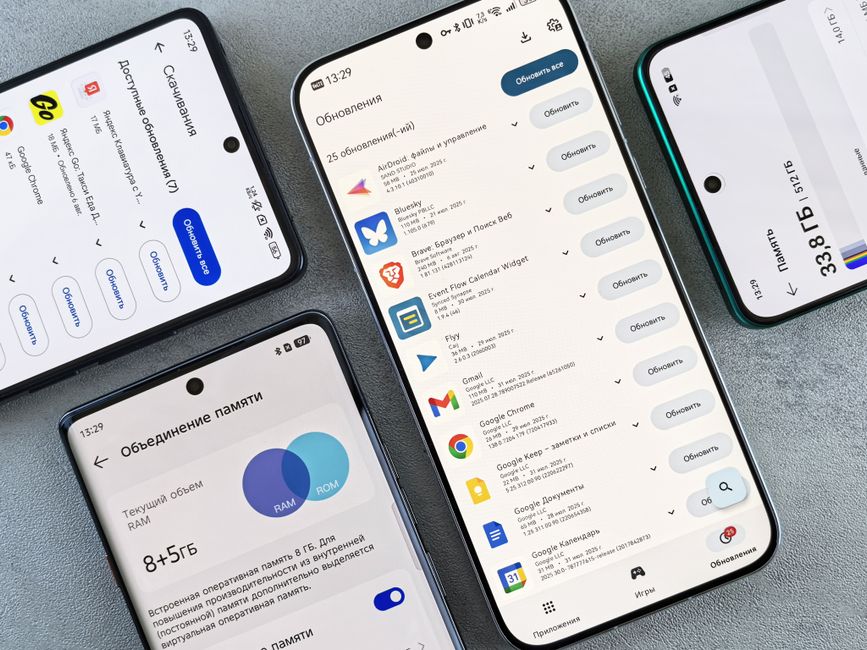
Furthermore, Google offers a dedicated system utility called Files by Google that includes a powerful automated cleanup feature called Smart Storage. This setting monitors your local gallery and automatically deletes photos and videos that have already been backed up to the cloud for more than 60 days. According to Western Digital (2023), typical smartphone users run out of storage space within 12 months of purchasing a 128GB device, primarily due to expanding media libraries.
Open the Files by Google app, tap the menu icon in the top left, and enter Settings. From there, toggle on the Smart Storage switch to authorize the app to manage your media. From experience, I recommend verifying that your Google Photos sync is fully functional before enabling this to ensure no unbacked-up media gets lost in the process.
Best for: Avid mobile photographers who frequently capture high-definition videos but forget to clear their local camera rolls.
Key takeaway: Smart Storage automates local media deletion to ensure your camera roll never fills up with files that are already safe in the cloud.
3. Google Photos storage saver
Consequently, tweaking your Android storage settings to optimize how your device uploads media to the cloud can yield massive storage savings on both your physical phone and your Google Account. The Google Photos app allows you to choose between backing up images in their original file size or using a slightly compressed format. This setting reduces massive photo file sizes down to a manageable 16 megapixels and compresses videos to high-definition resolution without a noticeable loss in visual quality.
Launch the Google Photos app, tap your profile picture, select Photo settings, and then tap Backup. Under the settings menu, select Backup quality and change the option from Original quality to Storage saver. What most guides miss is that this setting is not retroactive, meaning it will only compress new uploads unless you manually choose to recover storage through the web interface.
Best for: Users who want to maximize their free 15 gigabytes of Google cloud storage without paying for premium subscriptions.
Key takeaway: Switching to Storage saver drastically reduces the footprint of your cloud backups without compromising real-world image quality.
4. WhatsApp automatic media download
On the other hand, messaging applications like WhatsApp serve as massive black holes for local storage due to the sheer volume of shared memes, videos, and documents. By default, these platforms download every single media file directly to your internal drive as soon as you receive it. This setting changes that behavior, preventing groups and chats from silently overwhelming your storage with unwanted duplicate videos.
Open WhatsApp, navigate to Settings, select Storage and data, and look for the Media auto-download section. You should disable automatic downloads for photos, audio, videos, and documents under both mobile data and Wi-Fi connections. A common mistake here is assuming that disabling this prevents you from seeing the files, but it simply requires you to tap on an image to download it manually.
Best for: Active members of large group chats who receive constant streams of videos and images daily.
Key takeaway: Turning off automatic downloads puts you in control of what media actually earns a spot on your physical storage drive.
5. Google Chrome site storage management
In addition, web browsers like Google Chrome quietly accumulate enormous amounts of cache, cookies, and offline site data over months of browsing. While standard cache clearing is helpful, Chrome actually permits you to target specific high-volume websites that store local offline data on your phone. This setting lets you isolate and wipe out gigabytes of hidden offline data from sites you visited only once.
Open Google Chrome, tap the three dots in the top right corner, select Settings, and then choose Site settings. Scroll down to Data stored, where you will see a detailed list of websites ordered by how much storage space they currently consume. Tap the Clear all data button at the bottom of the list, or selectively delete data from the largest offenders on the screen.
Best for: Frequent web surfers who use their mobile browser to stream video or play web-based games.
Key takeaway: Managing Chrome site storage targets hidden web-browsing leftovers that standard device cleaner apps regularly overlook.
Conclusion
Therefore, taking control of your Android storage settings does not require paying for third-party optimization apps or performing factory resets. Out of all the options we discussed, my top recommendation is configuring the Google Play Store app archiving setting first. This feature offers the highest return on investment because it preserves your user configuration while instantly freeing up gigabytes of application packages. That said, combining all five settings will yield the best long-term results and prevent future low-space warnings entirely. Managing these parameters early ensures your operating system remains snappy, responsive, and ready for future updates. For more actionable hardware tips and performance guides, visit our mobile technology category archive to keep your digital setup running smoothly.
Cover image by: Andrey Matveev / Pexels