Your smartphone is a powerful tool, but its utility often feels capped by its battery life. We’ve all been there: reaching for the charger by late afternoon, wondering where the charge went. While aging batteries are a factor, more often it’s specific settings that are aggressively draining your device. As a senior practitioner, I’ve seen countless users unknowingly cripple their phone’s endurance. This listicle pinpoints five common culprits responsible for rapid phone battery drain – settings that, while sometimes convenient, exact a heavy toll on your daily charge. I’ve focused on settings that are frequently overlooked, easily adjustable, and offer a significant return on investment in terms of power savings. By tackling these, you’ll not only extend your phone’s uptime but also improve its overall longevity, ensuring your device supports your productivity without constant tethering to a wall outlet.
Excessive screen brightness and high refresh rates
The screen remains the single most power-hungry component of your phone. Running it at maximum brightness, especially in darker environments where it’s simply unnecessary, constantly consumes a disproportionate amount of energy. Furthermore, many modern smartphones boast high refresh rate displays—think 90Hz, 120Hz, or even 144Hz—for incredibly smooth scrolling and animations. While these offer a premium visual experience, they demand significantly more processing power and GPU cycles, directly translating to higher battery consumption. What most guides miss is that even “adaptive brightness” can sometimes overcompensate, setting the screen brighter than needed in certain conditions, forcing you to manually dial it down.
Therefore, the simplest fix is to manually lower your screen brightness whenever possible. Engage adaptive brightness and let your phone’s ambient light sensor do the work, but don’t hesitate to override it downwards if it’s too bright for your current environment. Crucially, consider reducing your screen’s refresh rate. Most phones allow you to switch between the higher refresh rate and a standard 60Hz. Navigate to your display settings and look for options like “Motion smoothness,” “Screen refresh rate,” or “Adaptive refresh rate.” Selecting the lower, standard refresh rate will immediately reduce the power draw, often without a noticeable dip in daily usability. On some devices, even “adaptive” refresh rates can default to higher settings when not truly necessary.
Best for: Users prioritizing battery life over ultra-smooth visuals, and those who frequently use their phone outdoors or under varying light conditions.
Key takeaway: Reduce brightness and opt for a standard 60Hz refresh rate to significantly cut screen power consumption.
Constant location services (GPS)
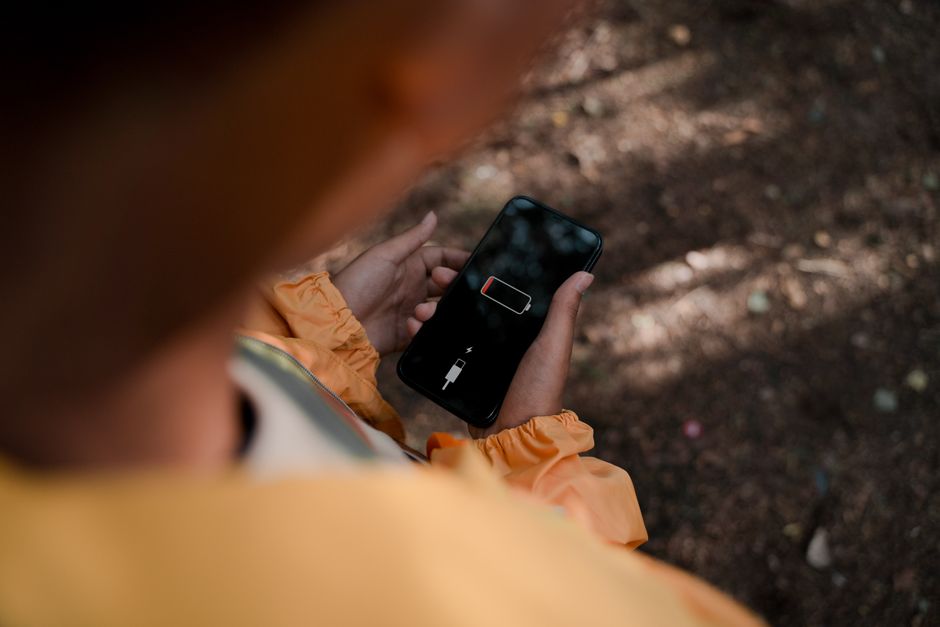
Location services, powered primarily by GPS, are incredibly useful for navigation, weather apps, and finding nearby points of interest. However, allowing apps to access your precise location constantly in the background is a major drain on your battery. Each time an app pings your device’s GPS chip, it consumes substantial energy, not just for the GPS itself but also for network triangulation and processing the data. From experience, many users enable location access for apps during initial setup and then forget about it, leaving dozens of applications tracking their whereabouts unnecessarily.
To mitigate this, conduct a regular audit of which apps have location permissions. On iOS, go to Settings > Privacy & Security > Location Services. On Android, it’s typically Settings > Location > App permissions. For each app, ask yourself if it genuinely needs your location “Always” or if “While Using the App” or “Ask Next Time” would suffice. Better yet, for many apps, “Never” is the right answer. Restrict background location access aggressively. Furthermore, consider turning off “Precise Location” for apps that only need a general idea of your area, as this reduces the workload on the GPS module. This small change offers a big win for your mobile tech‘s endurance.
Best for: Everyone, particularly those with many apps installed or frequent travelers who use location-aware services.
Key takeaway: Regularly audit and restrict app access to location services, especially background and precise location data.
Background app refresh and push notifications
Even when you’re not actively using an app, many are designed to work in the background, constantly refreshing their content, checking for updates, and fetching new data. This background activity, combined with excessive push notifications, keeps your phone’s processor awake and active, consuming precious battery cycles. Think about social media feeds, news apps, and email clients – they often refresh without your direct command, waiting to grab your attention. A common mistake here is assuming that closing an app fully stops its background processes; often, the system still allows it to perform periodic checks.
To fix this, go into your phone’s settings and find the “Background App Refresh” (iOS: Settings > General) or “Background data usage” (Android: Settings > Apps > [select app] > Mobile data & Wi-Fi) options. Disable background refresh for any app you don’t need to be constantly updated. For instance, do you really need your photo editing app refreshing itself in the background? Probably not. Similarly, manage your push notifications. Every notification wakes up your screen and often causes a vibration, both of which drain battery. Disable notifications for non-essential apps; on Android, use notification channels to fine-tune what alerts you receive, reducing incessant pings.
Best for: Users with a large number of apps, especially social media, news, or email clients.
Key takeaway: Limit background app refreshing and selectively disable non-essential push notifications to minimize wake-ups and data fetching.
Vibration and haptic feedback
While often subtle, the haptic engine responsible for vibrations and tactile feedback is a physical motor that consumes significantly more power than a simple audio alert. Every time your phone vibrates for a notification, a call, or even subtle haptic feedback when typing, it uses a burst of energy to move that small motor. Over the course of a day, these small, frequent energy expenditures add up, contributing noticeably to overall battery drain. In practice, many users enable haptic feedback for every touch, keypress, and system interaction, not realizing the cumulative power cost.
To conserve power, consider reducing or disabling unnecessary vibrations. Go to your phone’s “Sound & Haptics” or “Vibration & Ringtone” settings. Turn off keyboard haptics – the subtle buzz you feel with each keypress – which is a frequent but often overlooked culprit. Also, review which notifications truly require a vibration. For instance, do you need your phone to vibrate for every email or social media like, or is an audible alert sufficient? Keep vibrations enabled for critical alerts like calls or important messages, but disable them for less urgent notifications. This simple adjustment can significantly extend your device’s charge, particularly for heavy texters or those with many app alerts.
Best for: Individuals who frequently type on their phone, receive many notifications, or prefer a quieter device.
Key takeaway: Reduce or disable haptic feedback for keyboard input and non-critical notifications to conserve energy used by the vibration motor.
Always-on display and dynamic wallpapers
Many modern smartphones feature an “Always-On Display” (AOD) which subtly shows time, date, and basic notifications even when the screen is otherwise off. While these use OLED technology to light up only the necessary pixels, they are still consuming power constantly. Similarly, dynamic wallpapers or live backgrounds, which feature animated images or changing scenes, require continuous processing and screen refreshing to maintain their effect. While visually appealing, both these features ensure your display hardware is never truly at rest, leading to a steady, often unnoticed, battery drain.
The solution is straightforward: disable your Always-On Display if you don’t find its benefits outweigh the constant power draw. You can usually find this option under your phone’s display settings, often labeled “Always On Display” or “Ambient Display.” Consider if glancing at your watch or pressing the power button for the time is an acceptable alternative. Furthermore, switch from dynamic or live wallpapers to static images. While less flashy, a static wallpaper demands no continuous processing or animation, meaning your phone’s GPU can rest when the screen is active but static. These subtle visual elements collectively contribute more to your phone battery drain than most users suspect, especially over a full day.
Best for: Users who prioritize maximum battery life, and those who don’t frequently check their phone for quick information without fully unlocking it.
Key takeaway: Turn off Always-On Display and switch to static wallpapers to prevent continuous, subtle power consumption from the screen.
Managing your smartphone’s battery life isn’t just about dimming the screen; it’s about understanding the cumulative impact of various settings that constantly demand power. By proactively addressing these five common culprits – excessive screen brightness and refresh rates, constant location services, background app refresh and push notifications, vibration and haptic feedback, and always-on displays with dynamic wallpapers – you can significantly improve your phone’s endurance. In my experience, the biggest win often comes from tackling background app refresh and location services, as these frequently run unnoticed. Start with these adjustments, and you’ll likely notice a marked improvement in how long your device stays charged. My top recommendation for a quick, impactful fix is to critically review and reduce your background app refresh and location permissions. These are often the most aggressive, hidden drains, and disabling them for non-essential apps provides immediate and tangible battery life gains.
Cover image by: Ron Lach / Pexels