Congratulations on your new laptop! It’s an exciting piece of hardware, but its true power lies in the software you install. As a senior tech practitioner, I often see new owners overwhelm themselves with unnecessary downloads or overlook critical tools. This guide cuts through the noise, showing you how to systematically equip your device with nine indispensable free apps that enhance security, boost productivity, and safeguard your privacy, all without spending a dime. We’ll focus on the essential categories and guide you through a best-practice installation process, ensuring your laptop is ready for prime time from day one.
Setting up your digital workspace strategically not only improves your daily workflow but also establishes a robust foundation for long-term use. By choosing open-source and privacy-conscious options, you often gain more control over your data and avoid intrusive advertisements. This isn’t just about downloading programs; it’s about making informed choices that protect your digital life and streamline your experience. Furthermore, adopting a systematic approach helps prevent common pitfalls like bloatware or security vulnerabilities.
What you’ll need
- Your new laptop, freshly out of the box or recently reset.
- A stable internet connection for downloading.
- Administrator access to your laptop for installing software.
- A trusted web browser (the one pre-installed, like Microsoft Edge or Safari, is fine for initial downloads).
Key takeaway: Gather your laptop, internet, admin access, and a basic browser before starting.
Step-by-step: Equipping your new laptop
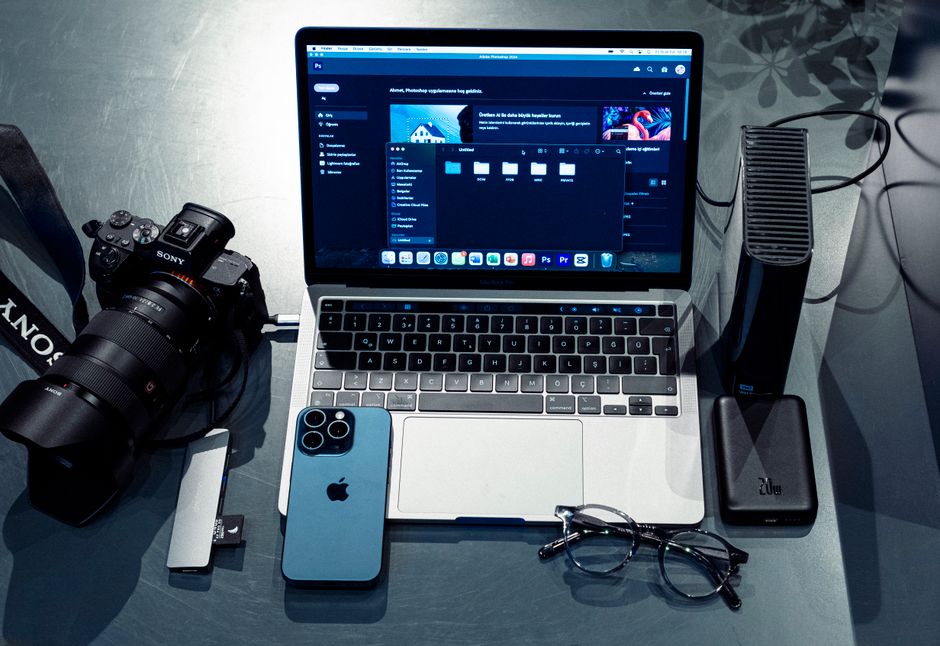
The goal here isn’t just to install apps, but to establish a robust and secure digital environment. Follow these steps to ensure your new laptop is set up efficiently with essential free software.
-
Assess your core digital needs. Before downloading anything, consider what you’ll primarily use your laptop for. Are you a student needing an office suite, a creative requiring image editing, or just an everyday user focused on browsing and communication? Identifying these needs first helps prioritize your installations and prevents unnecessary clutter.
-
Select highly-rated, privacy-focused free alternatives. Choose software known for its reliability, features, and commitment to user privacy. For secure browsing, consider **Brave Browser**, which blocks ads and trackers by default. Manage your login credentials with **Bitwarden**, an open-source password manager that keeps your data secure. For a full-featured office suite, **LibreOffice** is an excellent, free alternative to Microsoft Office. Play virtually any media file with **VLC Media Player**, an incredibly versatile tool. Handle compressed files effortlessly with **7-Zip**, a lightweight and powerful archiver. For cloud storage, leverage the free tiers of services like **Google Drive** or **OneDrive** to back up essential documents. For image editing, **Paint.NET** offers a great balance of features and ease of use for Windows users. Take notes and organize information with **Joplin**, a powerful open-source note-taking app that syncs across devices. Finally, secure your communications with **Signal**, a leading privacy-focused messaging app.
-
Download applications from official developer websites. This is perhaps the most crucial step for security. Always go directly to the software developer’s official site to download programs. Avoid third-party download sites, as they often bundle legitimate software with unwanted bloatware or even malware. From experience, a common mistake here is rushing through the download process and clicking on the first link in a search result, which might not be the official source.
-
Install systematically and review permissions carefully. Run each downloaded installer one by one. During installation, pay close attention to every prompt. Opt for “Custom” or “Advanced” installation options if available, as this often allows you to deselect bundled extra software that you don’t need, sometimes referred to as ‘crapware’ or PUPs (Potentially Unwanted Programs). Also, review any requested permissions to ensure they make sense for the application’s function. For instance, a media player doesn’t need access to your contacts.
-
Configure initial privacy and security settings. After installation, open each new application and immediately check its settings for privacy and security options. For browsers like Brave, ensure tracking protection is at its highest level. In Bitwarden, set up strong master password policies and consider two-factor authentication. In practice, taking these few extra minutes upfront can save significant headaches later by protecting your data and reducing digital clutter. According to Verizon’s 2023 Data Breach Investigations Report, 74% of all breaches involved the human element, with stolen credentials a key vector, underscoring the importance of robust password management.
-
Establish a routine for software updates. Software developers regularly release updates to fix bugs, introduce new features, and, critically, patch security vulnerabilities. Enable automatic updates for all your installed applications where possible. If an app doesn’t support automatic updates, make a note to check for updates manually at least once a month. This proactive approach ensures your software remains secure and performs optimally. You can learn more about general software best practices on our software category page.
Key takeaway: Follow a secure, systematic process of selection, download, installation, and configuration for all new apps.
Common problems and fixes
Slow downloads or corrupted files
Sometimes, slow internet or an unstable connection can lead to incomplete downloads or corrupted installation files. If an installer fails or acts erratically, delete the downloaded file and try downloading it again, ideally on a more stable network. Consider pausing other internet-intensive activities during the download process to free up bandwidth. Furthermore, temporary network glitches can sometimes interfere with file integrity checks, so a fresh download is always the best first step.
Unwanted toolbar or bloatware installed
This is a classic ‘gotcha’ for new users. If you find extra toolbars in your browser or unfamiliar programs running in the background, it’s likely you missed an opt-out checkbox during an installation. Go to your laptop’s ‘Apps & features’ (Windows) or ‘Applications’ folder (macOS) and uninstall any suspicious or unwanted programs immediately. Be cautious and research any unfamiliar entries before removal to ensure you don’t delete critical system files. In addition, review your browser’s extensions or add-ons and remove anything you didn’t explicitly intend to install. This is a common tactic by less scrupulous free software providers.
Application conflicts or crashes
Occasionally, two programs might try to use the same resources or have incompatible libraries, leading to crashes. First, try updating both applications to their latest versions, as developers often release compatibility fixes. If the issue persists, try uninstalling one of the conflicting applications and seeing if the problem resolves. If it does, you may need to find an alternative for the uninstalled app. Rarely, a fresh reboot after installing a new app can also resolve minor conflicts, especially if system files or drivers were updated.
System performance degradation
Installing many apps, even free ones, can sometimes impact system performance, especially on laptops with limited RAM or older processors. If your laptop feels sluggish after installing several programs, check your Task Manager (Windows) or Activity Monitor (macOS) to identify which applications are consuming the most resources. Close unnecessary background apps and consider if any of the installed programs have lighter alternatives if the performance hit is significant. Also, regularly clear temporary files and browser caches; these small maintenance tasks can cumulatively improve speed. According to a 2022 survey by PCMag, 35% of users reported noticeable slowdowns after installing more than 10 new applications without proper system optimization.
Key takeaway: Address installation issues by re-downloading, uninstalling bloatware, updating, or managing resource-intensive apps.
When this won’t work
This step-by-step guide is primarily designed for new consumer-grade laptops running Windows or macOS. It may not fully apply to corporate-issued devices with strict IT policies, which often restrict software installations to pre-approved lists. Similarly, users on Linux distributions will follow a different installation process, typically relying on package managers, though the principles of selecting reputable, free software remain relevant. Finally, if you’re installing on a heavily custom or specialized system, unique driver or compatibility issues might arise that go beyond the scope of general app installation.
Key takeaway: This guide is best for new personal laptops, not corporate devices or specialized operating systems.
By systematically installing these nine essential free applications, you’re not just populating your new laptop; you’re building a foundation for a productive, secure, and private digital experience. From the privacy-centric browsing of Brave to the robust password management of Bitwarden, each recommendation serves a crucial purpose in your tech arsenal. Furthermore, understanding the process of safely acquiring and configuring software is a vital skill that will serve you well for the lifespan of your device and beyond. Your next action should be to set aside a dedicated hour to work through these steps. Tackle one category at a time – security first, then productivity, then utilities – to avoid feeling overwhelmed. This small investment of time now will pay dividends in peace of mind and efficiency, ensuring your new laptop truly works for you.
Cover image by: Ertan KaÅŸdemir / Pexels