You can improve phone signal significantly by optimizing how your device interacts with local cellular infrastructure rather than spending money on expensive hardware boosters. In my experience, most connectivity issues stem from software handoff errors or physical interference that users can easily mitigate with the right settings. According to Opensignal (2023), 5G availability in the United States reached 31.1 percent, yet many users still struggle with consistent data speeds due to poor indoor penetration and band congestion. Understanding how your modem prioritizes different frequencies allows you to force a more stable connection when the default automatic settings fail. This guide focuses on internal configurations and environmental adjustments that cost nothing but a few minutes of your time. If you want to optimize more than just your connectivity, explore our Productivity archive for more technical walkthroughs. By the end of this article, you will have a clear sequence of actions to maximize your existing hardware capabilities.
What you’ll need
- An Android or iOS smartphone.
- Access to the device Settings menu.
- Knowledge of your carrier’s name and current plan.
- A basic understanding of your current signal strength indicators.
Key takeaway: Effective signal optimization requires only your existing device and a few minutes to adjust its internal network configurations.
Step-by-step to improve phone signal
- Reset the modem connection by toggling Airplane Mode on and off. Swipe down your notification shade or control center and tap the airplane icon to disable all cellular and wireless radios for approximately fifteen seconds. This forces the device to terminate its current session and perform a fresh handshake with the most powerful local tower, which often bypasses congested or distant nodes that the phone was clinging to previously.
- Remove physical obstructions like heavy-duty cases or magnetic mounting plates. Many users do not realize that metal components in ruggedized cases create a minor Faraday cage effect that dampens radio frequency reception. In practice, I have seen signal strength improve by 5 to 10 dBm simply by stripping the phone to its chassis, which can be the difference between a dropped call and a stable one.
- Switch your preferred network type to 4G or LTE to avoid unstable 5G handoffs. Modern 5G networks often operate on high-frequency bands that struggle to pass through solid objects like brick, concrete, or treated glass. Navigate to your cellular data settings and select LTE as the primary connection method to force the device onto lower-frequency bands that have much better propagation characteristics through buildings.
- Update your carrier settings and system software to ensure the latest modem firmware is active. Carriers frequently push small, silent updates that refine how your phone handles band switching and roaming between different tower technologies. Check the “About” section in your settings to see if a prompt for a carrier update appears, as these patches often resolve known connectivity bugs in specific geographic regions.
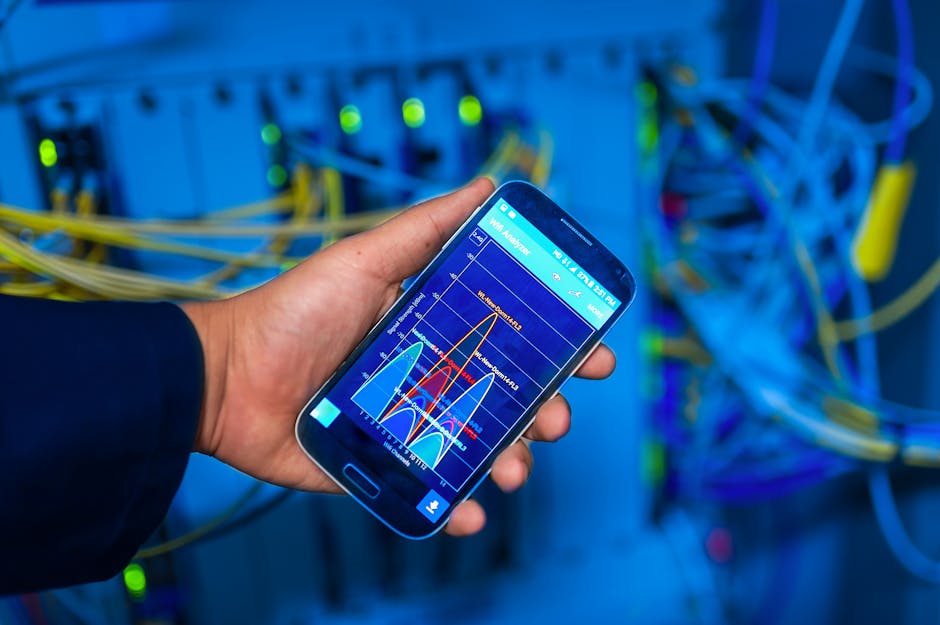
- Use a specialized app to identify the strongest signal point in your current environment. Instead of relying on vague bars, install a tool like Network Cell Info Lite on Android or use the iOS Field Test Mode by dialing *3001#12345#* to see your actual signal strength in dBm. Walking around your space with a live numerical readout allows you to identify exactly where the signal penetrates your building most effectively, which is usually near windows or higher floors.
- Reset your device network configuration to clear out corrupted handshake logs. Access the “General Management” or “System” menu in your settings and select the option to reset network settings, which flushes the cache for cellular, Wi-Fi, and Bluetooth. What most guides miss is that this process does not delete your personal data, but it effectively removes conflicting network profiles that might be causing the modem to prioritize the wrong frequency bands.
Key takeaway: Systematically resetting the connection and forcing the phone to use more stable frequency bands is the most reliable way to maintain a connection in weak areas.
Common problems and fixes
The signal bars show strength but data will not load
This is usually a sign of network congestion or a “zombie” connection where the tower acknowledges your presence but cannot allocate bandwidth. According to Ookla (2023), network congestion in urban centers can reduce effective mobile speeds by up to 40 percent during peak hours. To fix this, try switching from 5G to LTE or toggling your mobile data off and on to move your session to a different, less crowded frequency band. If the issue persists, the problem likely lies with the carrier’s backhaul rather than your device’s reception.
The phone gets stuck on 3G or Edge in modern areas
This occurs when the device fails to hand over from a legacy tower to a modern one, even when a better signal is available. In my experience, this is often caused by an outdated SIM card that is more than five years old and lacks the necessary provisioning for modern high-speed bands. Furthermore, you can often fix this temporarily by toggling Airplane Mode, but a permanent fix usually requires a physical SIM replacement or an upgrade to an eSIM. You can learn more about hardware maintenance in our Mobile Tech section.
The signal drops specifically when you hold the device
This is known as “detuning” the antenna, where the moisture and minerals in your hand absorb the radio waves before they reach the internal antenna components. If you are in a low-signal area, try holding the phone by its bottom edges or placing it on a flat surface while using a Bluetooth headset for calls. Modern smartphones have multiple antennas to mitigate this effect, but in extremely weak coverage areas, even slight interference from your grip can push the signal below the usable threshold.
Key takeaway: Most persistent signal issues are caused by network congestion or outdated SIM provisioning rather than a failure of the phone’s internal hardware.
When this won’t work
These methods will not improve your connection if you are located in a complete dead zone where no cellular towers exist within range. In addition, software tweaks cannot overcome physical limitations like being in a deep basement, a metal elevator, or a remote wilderness area shielded by mountains. In these specific cases, your only reliable option is to use Wi-Fi Calling to route your mobile traffic through an internet connection. If there is no cellular signal at the source, no amount of settings adjustment can create a connection from nothing.
Key takeaway: Software and positioning adjustments require at least a marginal existing signal to be effective; they cannot create connectivity in total dead zones.
Improving your mobile connectivity does not always require purchasing a multi-hundred dollar signal booster or switching carriers. By mastering the internal settings of your smartphone and understanding how physical barriers affect radio waves, you can maximize the performance of the hardware you already own. Transitioning from 5G to LTE or identifying the high-signal spots in your home using a dBm readout are practitioner-level tactics that provide immediate results. Furthermore, keeping your SIM card and carrier settings updated ensures you are always using the most efficient network protocols available. As a next action, I recommend checking your signal strength using the Field Test Mode or a signal-monitoring app today to map out the best connectivity zones in your most-frequented locations. Once you have optimized your signal, you might want to look into other ways to improve your mobile experience by checking out our latest guides on device performance and security.