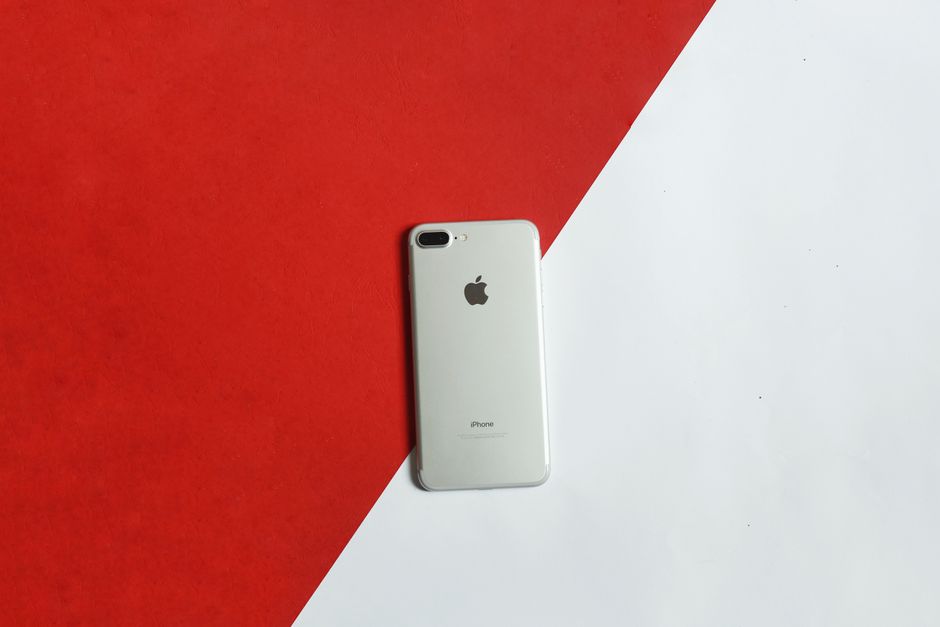
You can free up iPhone storage without spending money on monthly iCloud subscription plans if you use the right built-in utilities and free applications. Many users run out of space quickly because modern apps and media files require massive amounts of local drive space. In fact, according to a consumer report by Counterpoint Research (2023), the average storage capacity of smartphones globally has surpassed 140 gigabytes, yet media consumption and cache accumulation still outpace this physical hardware growth.
Fortunately, you do not need to pay for premium cleanup applications that often harvest your personal data. Instead, you can rely on secure iOS settings and trusted free tools like Google Photos to reclaim your device capacity. By targeting hidden system caches, duplicate images, and unused application data, you can quickly restore your phone to peak performance. This guide walks you through the practical, no-fluff process to optimize your device immediately.
What you’ll need
- An iPhone running iOS 16 or later
- The free Google Photos app for cloud backup
- A stable Wi-Fi connection
- Your Apple ID credentials
Key takeaway: You only need built-in iOS tools and a secure free cloud app to reclaim your storage.
Step-by-step guide to free up iPhone storage
- Analyze your storage breakdown. Open your Settings app, tap General, and select iPhone Storage to view a detailed visual graph of what occupies your drive. Wait a few moments for the system to index and accurately display your cached files, applications, system files, and media categories. This screen displays customized recommendations directly from Apple to help you identify the easiest wins.
- Offload your unused applications. Scroll down the iPhone Storage menu to identify heavy applications that you have not launched in the past few months. Tap on the specific application and select Offload App to delete the application binary while keeping your personal data and documents intact. From experience, offloading is far superior to deleting because it preserves your user documents and application progress if you ever reinstall the software.
- Consolidate and delete duplicate media. Open the native Photos app, tap Albums, and scroll to the Utilities section at the very bottom of the screen. Tap on Duplicates, select Merge, and confirm the action to combine duplicate photos and videos into a single high-quality version while removing redundant files. Furthermore, this process automatically transfers the discarded copies into your Recently Deleted album to free up physical space immediately.
- Offload photos to Google Photos. Download the free Google Photos application from the App Store and sign in with your Google account to set up automatic backup. Enable the “Free Up Space” feature inside the app settings once your entire library finishes uploading to the cloud. This native utility automatically deletes local copies of photos from your iPhone that are already safely backed up in your cloud library, allowing you to free up iPhone storage effortlessly.
- Clear large attachments in messaging apps. Navigate to your Settings app, tap General, then iPhone Storage, and select Messages to view a list of large file attachments. Select individual video or photo attachments that you no longer need and swipe left to delete them permanently. In addition, you should configure your Messages history settings to auto-delete threads older than thirty days or one year.
- Purge web browser caches. Open the Settings app, scroll down to Safari, and tap Clear History and Website Data to remove cookies and temporary files. What most guides miss is that Safari offline reading lists can quietly consume gigabytes of system data without your explicit knowledge. Therefore, tap Edit on your Reading List inside Safari and delete cached articles to finalize your cleanup process.
Key takeaway: Systematically targeting heavy media and unused applications through native tools yields the largest storage savings.
Common problems and fixes
The storage graph does not update after deleting files
Typically, your iPhone needs time to reindex files after a large-scale deletion. To force a recalculation, restart your device or connect it to a stable Wi-Fi network. Additionally, make sure to navigate to your Photos app, select Albums, tap Recently Deleted, and manually empty the trash to instantly reclaim that space.
The gray System Data category occupies too much space
In practice, system data consists of temporary caches, voice logs, and system update packages that iOS fails to purge automatically. The best way to clear this category is to perform a full encrypted backup of your iPhone to a computer via Finder or iTunes, wipe the phone, and restore it from the backup. This action consolidates fragmented database files and trims corrupted system caches that standard tools cannot touch.
Google Photos fails to upload images in the background
Consequently, Apple restricts background processes to preserve battery life, which often pauses large photo syncs. To fix this, open Google Photos, keep the screen active, and connect your phone to a charger. Furthermore, you should temporarily disable Low Power Mode in your battery settings to allow unrestricted background data transfers.
Key takeaway: Most storage cleanup issues resolve once you empty your digital trash cans and restart the operating system.
When this won’t work
However, these methods will not solve your issues if you are operating an older iPhone with extremely low base hardware capacity, such as 16 or 32 gigabytes. Modern system files and baseline applications require significant overhead that software tweaks cannot bypass. In these extreme cases, your only long-term option is upgrading to a device with larger physical storage or purchasing paid cloud storage plans.
Key takeaway: Severe physical hardware constraints or system-level corruptions require upgrades rather than software adjustments.
Conclusion
Ultimately, maintaining a clean mobile environment is essential for the longevity and performance of your Apple device. According to a 2022 survey by mobile analytics firm Flurry (2022), average users spend over four hours per day on their devices, creating mountains of temporary data that degrade performance. By implementing these free strategies monthly, you prevent application crashes and maintain optimal operating speeds without paying extra fees.
In addition, you can read our mobile guides on the mobile OS category archive to discover more optimization tricks. Your next step is to open your iPhone Storage menu right now and offload your top three unused apps. Taking this five-minute action immediately gives your processor breathing room and frees up significant space for new photos and system updates.
Key takeaway: Regular five-minute storage audits keep your iPhone running smoothly and prevent expensive subscription upgrades.
Cover image by: Đỗ Tâm / Pexels