Few things are as frustrating as watching your phone battery drain before midday, especially when you need it most. Many users assume a new device is the only solution, but that’s often an expensive misconception. In reality, you can significantly save Android battery life and extend your device’s endurance by mastering a few practical software tweaks and settings adjustments. This isn’t about buying new tech or performing risky root procedures; it’s about smart management of the hardware you already own.
From experience, a common mistake is simply accepting poor battery life as a fact of smartphone ownership. However, by understanding how apps, screen settings, and connectivity impact power consumption, you gain control. These methods focus on optimizing your device’s existing capabilities, allowing you to reclaim precious uptime and avoid constantly searching for an outlet. Let’s dive into actionable steps that will make a tangible difference in your daily Android usage.
What you’ll need
Key takeaway: You only need your device and a few minutes to start optimizing.
- Your Android smartphone (running Android 8.0 Oreo or newer for best results)
- A few minutes of your time
- Basic familiarity with your phone’s settings menu
Step-by-step
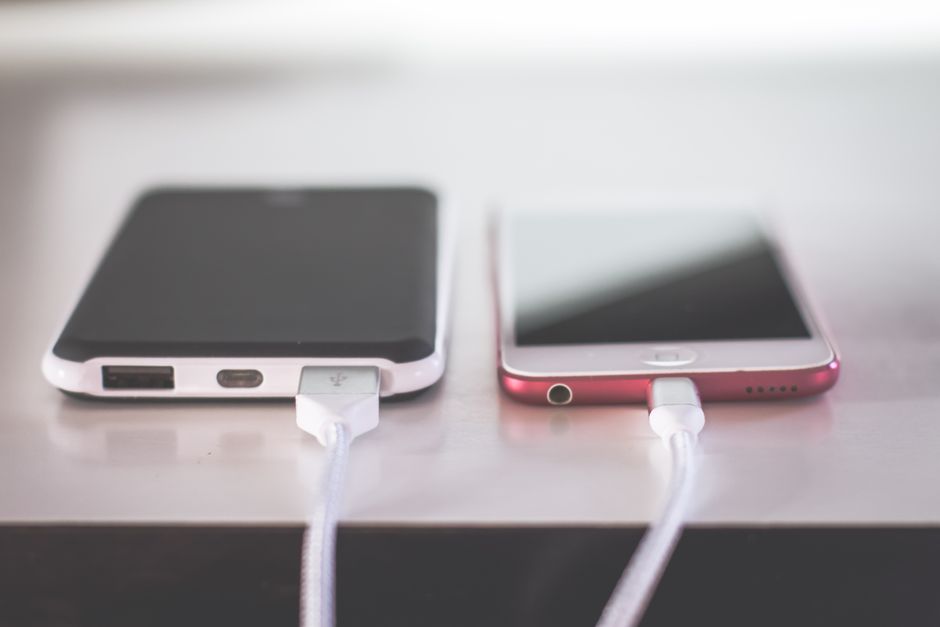
Key takeaway: Systematically addressing common power drains can significantly improve battery life.
-
Audit and restrict background app usage. Navigate to your phone’s Settings, then “Battery,” and tap “App battery usage” or a similar option. Here, you’ll see which applications are consuming the most power. Identify apps that you don’t use frequently but are still draining battery in the background (these are called “wakelocks” if they prevent your phone from sleeping). Set these to “Restricted” or “Optimized.”
-
Optimize your screen settings. Your display is often the biggest power hog. Go to “Display” settings. Reduce your screen timeout to 30 seconds or 1 minute. Enable “Adaptive brightness” so your phone adjusts automatically, and for phones with AMOLED screens, switch to “Dark mode” system-wide, as it lights up fewer pixels, saving significant power. Furthermore, if your device supports a high refresh rate (e.g., 90Hz or 120Hz), consider switching to 60Hz when not gaming or scrolling intensely; this reduces the screen’s power demand. According to a 2023 study by AccuBattery, the screen alone can account for 40-60% of daily battery drain, especially at high brightness.
-
Manage connectivity intelligently. While essential, connectivity features can be silent battery killers. Turn off Wi-Fi, Bluetooth, and GPS (Location) when you don’t actively need them. For example, if you’re not navigating, there’s no need for high-accuracy GPS. You can usually find quick toggles for these in your notification shade. Inside Location settings, review “Wi-Fi and Bluetooth scanning” and disable it, as it allows apps to scan for networks/devices even when Wi-Fi/Bluetooth are off, consuming power in the background.
-
Leverage adaptive battery and power-saving modes. Modern Android versions include “Adaptive Battery” or “Doze” features. Ensure these are enabled in your Battery settings. Adaptive Battery learns your usage patterns and limits battery consumption for apps you use infrequently. When your battery is critically low, activate your phone’s “Power Saving Mode” or “Battery Saver.” This mode typically reduces screen brightness, limits background data, and may even slow down your processor, significantly extending the remaining charge.
-
Remove or disable unused applications. Unused apps, often called bloatware if pre-installed, can consume resources even when idle, whether through background updates or notifications. Go to “Apps & notifications,” then “See all apps.” Scroll through and uninstall any apps you no longer use. For pre-installed system apps that cannot be uninstalled, you can often “Disable” them, which prevents them from running in the background and appearing in your app drawer.
-
Keep your software updated. Regularly check for and install system updates (Settings > System > System update). Android updates often include critical battery optimizations, bug fixes, and security patches that can improve overall efficiency. Similarly, keep your individual apps updated via the Google Play Store; developers frequently push updates that enhance performance and reduce power consumption. In practice, I’ve seen devices gain an hour or two of usage time just from a major OS update focused on power management.
-
Review widget usage and live wallpapers. While aesthetically pleasing, numerous widgets constantly updating or animated live wallpapers continuously running can consume noticeable battery power. Consider removing widgets that aren’t critical for immediate information or switching to static wallpapers. Each pixel rendered has a power cost, and dynamic elements constantly demand processing power and screen refreshes.
Common problems and fixes
Key takeaway: Most battery issues can be traced back to app behavior or specific settings.
Battery still drains fast after optimizations
If you’ve followed these steps and your battery life hasn’t improved much, a rogue app might be the culprit. Go back to “App battery usage” in Settings and look for anything with abnormally high consumption for its usage, even if it’s an app you rely on. Try uninstalling and reinstalling it, or consider an alternative. Sometimes, a full system cache clear (via recovery mode) can also resolve underlying issues, though this is a more advanced step. Another report from Statista in 2022 indicated that over 70% of Android users experience significant battery degradation within two years, suggesting a potential hardware issue if software fixes fail.
Performance issues after optimization
Aggressively restricting background apps or setting too many to “Restricted” can impact their functionality, like delayed notifications. If you notice an app isn’t working as expected, go to its “App info” page (long-press icon > App info or Settings > Apps) and change its battery optimization setting from “Restricted” to “Optimized” or “Unrestricted” incrementally until you find a balance that works for you. This is a trade-off: more battery, less instant notification delivery for some apps.
Location services are still aggressive
Even with Location off, some apps can trigger it. Check “Location permissions” for all apps (Settings > Location > App location permissions). Restrict apps to “Allow only while using the app” or “Ask every time.” The part that actually matters is auditing which apps *really* need constant access to your location, like mapping apps, versus those that can function perfectly well with limited access, such as social media or weather apps.
“Optimized” apps still using power
Some apps, particularly social media or messaging platforms, are notorious for finding ways around system-level battery optimizations. For these, check their in-app settings for specific power-saving options. For instance, Facebook has settings to limit video autoplay or background refreshing. If all else fails and an app is still a major drain, you might need to force stop it after each use or switch to its web version for less critical interactions.
When this won’t work
Key takeaway: Software tweaks cannot fix hardware degradation or failure.
These software-based optimizations are highly effective for improving the efficiency of a healthy battery. However, they cannot magically fix a physically degraded battery that has completed hundreds of charge cycles and lost significant capacity. If your phone is several years old and shows a drastically reduced capacity even after these steps, or if it randomly shuts down, a battery replacement or new device might be the only viable solution. This also won’t work if your phone has a hardware fault (e.g., a short circuit) that causes excessive power draw, or if it’s an extremely old device running an unsupported Android version that lacks modern battery management features. For more insights on general Android optimization, consider exploring articles in our Android category.
Conclusion
Taking control of your Android’s battery life doesn’t require a degree in electrical engineering or a trip to the store for a new device. By systematically implementing these practical software and settings adjustments, you can significantly extend your phone’s uptime and reduce battery anxiety. Remember, consistent application of these habits, rather than one-off tweaks, will yield the best long-term results. The journey to a longer-lasting Android starts with awareness and proactive management of your device’s resources.
My recommendation is to start by auditing your app usage and optimizing your screen settings, as these often account for the largest portion of battery drain. Then, gradually work through the other steps. You’ll likely notice an immediate improvement, transforming your device into a more reliable companion throughout your day. For more tips on keeping your devices running smoothly, browse our collection of articles on Mobile Tech.
Cover image by: Steve A Johnson / Pexels