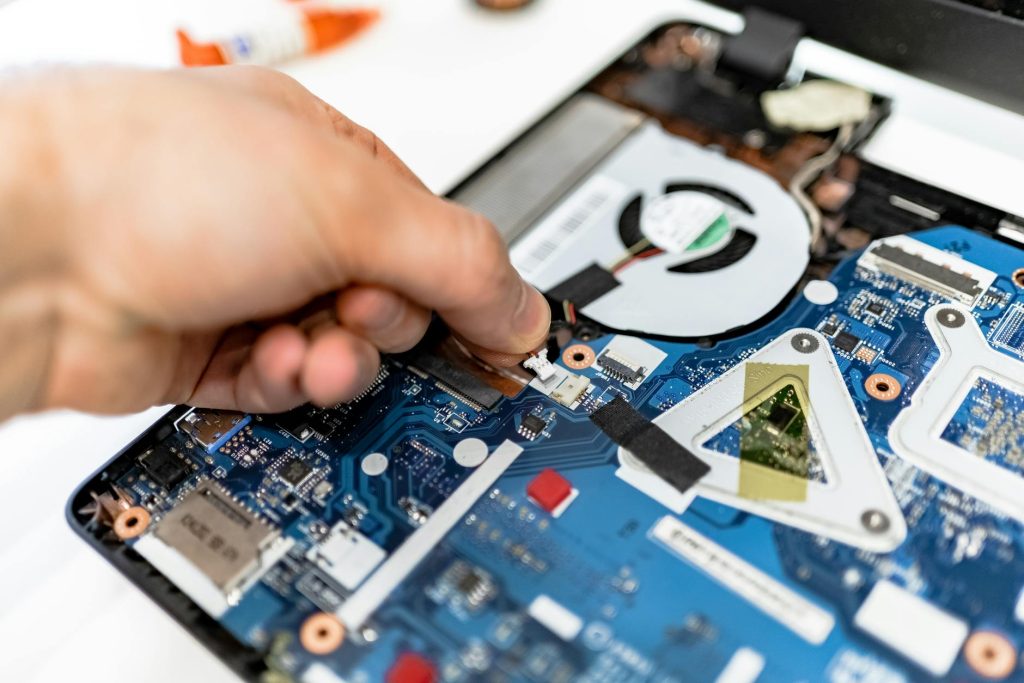
A slow Windows laptop often feels like an anchor dragging down your entire workday, but you can usually fix this with a targeted maintenance routine. Most users assume that performance degradation is inevitable as software ages, yet this is rarely the case if you manage your system resources correctly. In reality, Windows performance issues typically stem from cluttered background processes, outdated drivers, or hardware bottlenecks that you can address manually. Furthermore, understanding the architecture of your operating system allows you to identify exactly where the friction occurs. Whether you are a professional handling intensive data or a student managing multiple browser tabs, these technical adjustments will restore your machine to a functional state. However, before you reinstall your entire operating system, try these proven steps to diagnose and resolve the lag. Let us dive into the technical details of optimizing your machine for maximum efficiency.
Diagnostic steps for a slow Windows laptop

Before you start deleting files or altering settings, you must identify the primary bottleneck. A common mistake here is assuming that “slow” always means “low RAM,” when the issue is frequently input/output (I/O) wait times caused by a mechanical hard drive. According to Backblaze (2023), moving from a Hard Disk Drive (HDD) to a Solid State Drive (SSD) remains the single most impactful upgrade for system responsiveness. Therefore, open your Task Manager by pressing Ctrl + Shift + Esc to see if your CPU, memory, or disk usage is pinned at 100%. If you notice high disk usage on a system running an HDD, no software tweak will save you; you need a hardware upgrade. From experience, looking for processes that spike usage during idle time helps identify rogue background applications. Key takeaway: Use Task Manager data as your primary evidence before applying any software-based performance fixes.
Analyzing resource hogs with the command line
Sometimes the graphical interface hides hidden services that consume your cycles silently. You can leverage the command line to see exactly which processes are eating your resources by using the tasklist command. This utility provides a granular look at memory usage per process. To export this list to a text file for closer inspection, execute the following command in a standard Command Prompt:
tasklist /V /FO CSV > C:\processes.csvFurthermore, you should check for system file corruption that often slows down background operations. Windows includes a built-in tool called the System File Checker (SFC). Open your terminal as an administrator and type the following command to repair damaged system components:
sfc /scannowManaging startup items to regain speed
Your slow Windows laptop may simply be struggling to handle the dozens of programs that launch the moment you press the power button. Each startup item consumes a slice of your RAM and CPU capacity, creating a cumulative drag on the system boot sequence. In practice, I often find machines with thirty or more apps launching at startup, which is excessive for any modern operating system. By limiting these services, you immediately free up background resources that the system needs for your actual work. You can manage these settings easily through the Task Manager or the specialized Productivity section of your system settings. Most users do not need applications like Spotify or third-party cloud updaters running the second they log in. Key takeaway: Reducing the startup impact is the fastest way to shorten boot times and improve immediate system responsiveness.
The process of trimming your startup apps
Follow these steps to clean your boot sequence safely:
- Press Ctrl + Shift + Esc to open the Task Manager.
- Navigate to the Startup apps tab in the sidebar.
- Click on the Status column header to sort by enabled programs.
- Right-click any application that you do not need to launch automatically.
- Select Disable from the menu to prevent it from starting upon login.
Disk maintenance and storage hygiene
Storage performance is frequently overlooked, but it significantly affects your slow Windows laptop if the drive is nearly full. As a drive reaches 90% capacity, the file system struggles to find contiguous blocks of space to write new data. According to Micron (2022), SSD performance can degrade by up to 20% as the available free space drops below a critical threshold of 10%. Furthermore, fragmentation—while less of a concern for SSDs—still causes overhead in the file indexing system. You should regularly use the built-in Disk Cleanup tool or the Storage Sense feature to clear temporary files and cache data. However, be cautious when using third-party registry cleaners; they often cause more instability than they solve. Always stick to Microsoft-certified utilities to ensure the safety of your system configuration. Key takeaway: Maintain at least 15% of your storage as free space to ensure optimal read and write speeds.
Comparison of storage maintenance methods
| Method | Efficiency | Risk Level |
|---|---|---|
| Storage Sense | High | Very Low |
| Disk Cleanup | Moderate | Low |
| Third-party Cleaners | Low | High |
Optimizing power and thermal settings
The power management settings on your laptop often prioritize battery life over raw performance, causing your device to throttle CPU speeds. If you are experiencing a slow Windows laptop while plugged into a wall outlet, check your power plan immediately. High-performance mode allows the processor to operate at its maximum turbo frequency for longer periods, rather than scaling back to conserve energy. Furthermore, you should consider the thermal envelope of your machine. If your cooling vents are clogged with dust, your CPU will automatically throttle its speed to prevent heat-induced damage. The part that actually matters is keeping the chassis clean to prevent this thermal throttling. By cleaning your vents and setting your power profile to “High Performance,” you can often see an immediate jump in benchmark scores. Key takeaway: Align your power settings with your current task to prevent unnecessary hardware throttling.
When to consider a clean install
Sometimes, the accumulation of legacy driver files and broken configuration paths makes a clean installation of Windows the most efficient path forward. If you have tried the steps above and the system still lags, the registry might be bloated beyond simple repair. Furthermore, a clean install serves as a baseline check; if the computer is still slow after a fresh install, you have confirmed that your issue is strictly hardware-based. Always back up your critical data to an external drive or cloud storage before proceeding with a wipe. This approach is not a failure; it is a standard practice for maintaining professional hardware environments. Additionally, consider looking into Computing best practices for ongoing system health. A clean OS is often the difference between a machine that works for you and a machine that fights you. Key takeaway: A clean install acts as a definitive test to distinguish between software bloat and hardware failure.
Resolving performance issues requires a methodical approach rather than random guesswork. You have learned how to identify resource hogs using the Task Manager, clean your startup sequence, manage storage hygiene, and adjust power settings to prevent throttling. Each of these steps contributes to a snappier experience, ensuring that your laptop supports your workflow rather than hindering it. Remember that while hardware upgrades like SSDs provide the biggest gains, consistent maintenance software habits prevent the gradual decay that slows systems down over time. Do not feel overwhelmed by these options; start by sorting your startup apps and cleaning your storage space today to see an immediate impact. If you remain stuck, revisiting the task list and looking for persistent background processes is your next best move. Take ownership of your system settings now to eliminate the lag permanently.
Cover image by: www.kaboompics.com / Pexels