Learning how to clear iPhone storage represents a critical skill when your device starts slowing down or refusing to take new photos. In my experience, most users run out of space not because of their active apps, but because of hidden caches, duplicate media, and unoptimized system files. Fortunately, Apple provides excellent built-in diagnostic utilities that let you reclaim gigabytes of space without spending a dime on premium third-party cleaning apps. If you frequently see the dreaded “Storage Almost Full” alert, you can resolve the issue in under ten minutes. Therefore, mastering these native settings will keep your phone running smoothly and postpone the need for an expensive hardware upgrade. Let us look at how you can optimize your device today. For more mobile optimization guides, check out our resources in the Smartphones category.
What you’ll need
- An iPhone running iOS 16 or later to access modern storage tools.
- A stable Wi-Fi connection to process cloud optimization tasks.
- Five to ten minutes of uninterrupted time.
- Your Apple ID credentials in case you need to verify iCloud settings.
Key takeaway: Built-in iOS diagnostic features provide everything you need to safely audit and optimize your local phone storage.
Step-by-step guide to clear iPhone storage
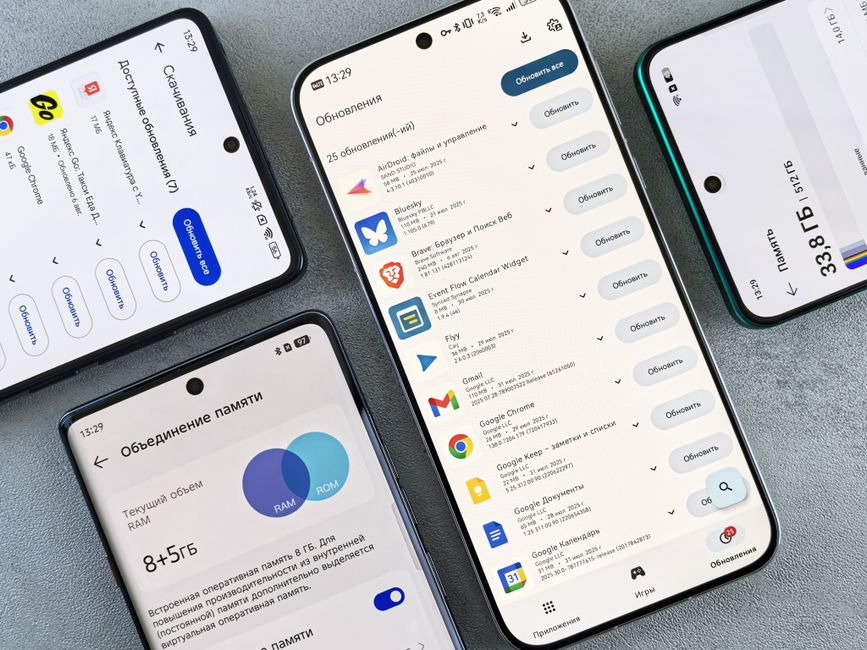
- Open your iPhone storage settings to diagnose where the bloat resides. Navigate to Settings, tap General, and then select iPhone Storage to see a color-coded bar chart of your space consumption. From experience, you should wait about thirty seconds for this menu to fully populate, as iOS needs time to calculate the exact size of your system data.
- Enable the “Offload Unused Apps” recommendation to clear iPhone storage without losing your personal data. This built-in iOS feature automatically removes the application binary while preserving your personal documents and user configurations. Consequently, if you download the app again in the future, your personal information remains completely intact.
- Review large message attachments that accumulate silently over years of texting. Scroll down the iPhone Storage menu, select the Messages app, and tap on “Review Large Attachments” to view photos and videos sorted by file size. Delete these media files directly from this interface to reclaim substantial amounts of space.
- Clear your Safari browser cache to remove temporary files and web tracking cookies. Go to Settings, scroll down to Safari, and tap “Clear History and Website Data” to wipe out accumulated offline assets. What most guides miss is that this step also closes active browser tabs, so ensure you bookmark critical pages first.
- Optimize your photo library storage by routing original high-resolution files to iCloud. Open your Settings, tap on Photos, and ensure that the “Optimize iPhone Storage” option is checked. This action replaces full-resolution photos on your physical device with smaller, device-sized versions while keeping the original safe in the cloud.
- Delete duplicate photos and videos using the native utility in the Photos application. Launch the Photos app, select Albums, scroll to the Utilities section, and tap on Duplicates to merge identical media. In practice, this single action can reclaim several gigabytes if you frequently take burst photos or receive shared media.
- Purge offline download caches from streaming apps like Spotify, Netflix, or YouTube Premium. Open these individual apps to delete downloaded playlists, offline movies, and podcasts that you no longer need. Furthermore, you can delete and reinstall these specific apps directly from the Storage menu to clear stubborn hidden caches instantly.
Key takeaway: Utilizing native iOS recommendations targeting apps, photos, and messages is the fastest way to reclaim physical drive space.
Common problems and fixes
System Data category is excessively large
Many users find that the “System Data” block consumes 20 GB or more of space with no clear way to delete it. According to Apple (2024), system data can temporarily fluctuate depending on active tasks, meaning a simple device reboot can reclaim up to 2 GB of cached space. If a standard reboot does not work, connect your iPhone to a computer, perform a local backup, and restore the device to clear deep system caches.
Offloaded apps are still taking up local storage
Sometimes, an offloaded app continues to show a high storage footprint because its local document directory is massive. A common mistake here is assuming that offloading deletes the user data; it only deletes the app code. If an app like WhatsApp has 10 GB of local media, offloading the app will only save about 150 MB. Therefore, you must manually delete the media inside the app itself to free up the physical space.
The storage calculation screen hangs or remains blank
If your iPhone is extremely close to its absolute storage limit, the General storage menu may freeze or refuse to load. This occurs because the operating system does not have enough free memory to run the storage indexer. To clear iPhone storage manually in this state, delete a few large video files from your Photos app, then hard restart your phone to force the indexer to run fresh.
Key takeaway: Most storage calculation bugs and system data bloat can be resolved with a forced restart or a local backup restore.
When this won’t work
These storage optimization steps will not solve your issues if you have completely exhausted your iCloud storage allocation or if your physical iPhone capacity is simply too small for your work requirements. In addition, if you manage massive databases, shoot raw 4K video daily, or rely on heavy enterprise applications, virtual optimization cannot replace physical storage. In such cases, you will eventually need to upgrade your device or subscribe to a larger iCloud storage tier.
Key takeaway: software optimization cannot bypass the physical hardware limitations of an extremely low-capacity device.
Conclusion
Managing your mobile storage does not require expensive subscription tools or complex file managers. By spending ten minutes navigating your built-in iOS utility, you can locate and remove gigabytes of unnecessary clutter. According to a study by Business Insider (2023), the average smartphone user has over 2,000 photos stored locally, making media the primary driver of low storage issues. Addressing this digital clutter dramatically improves device responsiveness and prolongs the lifespan of your current hardware. That said, consistency is key to maintaining a fast smartphone. As a next step, open your iPhone Settings menu right now and check your storage breakdown to see exactly which apps are costing you the most space. For more tips on maintaining your devices, explore our diagnostic articles in the iOS archive.
Cover image by: Andrey Matveev / Pexels