If you want to make laptop faster, you must ignore the generic online advice about registry cleaners and focus on physical bottlenecks. Many users assume a sluggish computer requires a costly replacement. However, the true culprit is often a single component restricting system performance. In my years of diagnosing hardware, I have found that software optimizations only yield marginal gains. Real, noticeable speed comes from understanding how your operating system interacts with your storage, memory, and thermal cooling systems.
Consequently, identifying these specific hardware limits is the most effective way to restore your system performance. This guide explains why your old machine slows down over time and evaluates the practical upgrades that actually deliver results. By focusing on measurable bottlenecks, you can bypass the marketing noise and apply targeted fixes that extend your hardware lifespan for a fraction of the cost of a new machine.
What actually causes your laptop slowdown
To begin with, when a computer ages, software demands increase while the physical hardware remains static. Operating systems, system updates, and modern web browsers consume significantly more resources than they did five years ago. In fact, modern web pages often load megabytes of complex JavaScript and media files that tax older processors. Furthermore, background telemetry, antivirus scans, and constant cloud syncing put a continuous load on your system resources. As a consequence, hardware that once felt speedy is now overwhelmed by the basic demands of daily computing.
The mechanical storage bottleneck
For example, traditional hard disk drives use physical spinning platters and a moving magnetic head to read and write data. As the drive fills up over months of usage, file fragmentation forces the drive head to move constantly across the platter, which drastically slows down read speeds. As a result, even basic actions like booting up your machine or opening a browser tab take minutes instead of seconds. This structural slowdown is not a software error, but rather a physical limitation of mechanical parts that simply cannot keep up with modern data transfer demands.
Key takeaway: Modern software bloat exposes the physical limitations of older spinning hard drives, making storage the primary system bottleneck.
How physical memory limits performance
Furthermore, Random Access Memory, or RAM, acts as the temporary, ultra-fast working space for your computer processor. When you run out of this temporary storage space, your operating system is forced to use virtual memory on your main storage drive. Consequently, the system writes active data to your storage drive, a sluggish process known as page-swapping. Because even the fastest storage is orders of magnitude slower than RAM, this swapping behavior causes severe lag, interface stutters, and unresponsive applications.
Single-channel versus dual-channel RAM
What most guides miss is that memory configuration matters just as much as overall capacity. Many budget laptops ship with a single stick of RAM running in single-channel mode, which limits data transfer speeds. According to Kingston Technology (2022), upgrading from single-channel to dual-channel memory can improve system performance by up to 37% in bandwidth-heavy tasks. Therefore, adding a second identical memory stick does not just give you more room to run applications, but it literally doubles your memory bandwidth by opening up a second pathway of communication to the CPU.
Key takeaway: Running out of RAM forces your system to swap data to the drive, but using dual-channel memory configurations dramatically increases processing throughput.
Practical steps to make laptop faster
Fortunately, you do not need to buy a brand-new computer to bypass these bottlenecks. Upgrading specific internal components can yield substantial performance gains for a fraction of the cost. To begin with, replacing an old mechanical drive with a modern solid-state drive is the most impactful upgrade you can perform. This change alone will make an old laptop feel faster than it did on the day you bought it, dramatically reducing load times.
Choosing the right storage upgrade
Specifically, a common mistake here is buying the cheapest solid-state drive available without checking its technical specifications. Low-cost drives often lack a physical DRAM cache chip, which means they slow down drastically during large file transfers. In my experience, using a reliable utility like Macrium Reflect allows you to clone your existing drive to a new SSD in under an hour without losing your personal data. That said, always use a reputable hardware compatibility tool like the Crucial System Scanner to ensure you buy the correct form factor for your specific motherboard.
Key takeaway: Installing a solid-state drive with a dedicated DRAM cache is the most effective hardware upgrade to make laptop faster.
The hidden impact of thermal throttling
In addition, many users overlook the role of heat management in laptop performance. When internal temperatures rise too high, the central processing unit automatically lowers its operating speed to prevent permanent damage. This protective mechanism is known as thermal throttling, and it can make your computer feel incredibly sluggish under load. Even if your hardware is top-tier, poor heat dissipation will cripple your performance within minutes of starting a heavy task.
Dried thermal paste and dust buildup
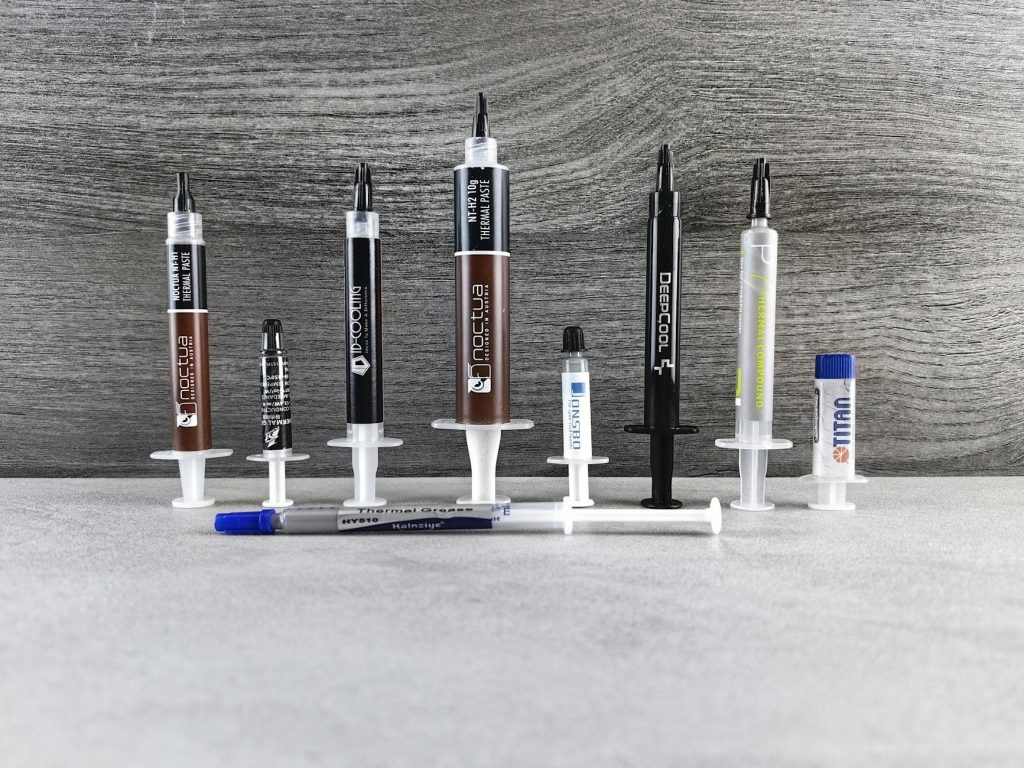
In practice, thermal paste dries out over three to four years, losing its ability to transfer heat efficiently from the processor to the copper heatsink. Additionally, dust accumulates inside the cooling fan vents, blocking vital airflow. To monitor this, you can download a free hardware diagnostic tool like HWMonitor to check your temperatures. If your processor frequently exceeds 85 degrees Celsius during simple tasks, your machine is throttling, and cleaning the vents is your best free alternative to hardware upgrades.
Key takeaway: Accumulated dust and degraded thermal paste cause processors to slow down deliberately to prevent heat damage.
Comparison of upgrade costs and performance impacts
To illustrate this, comparing the cost and difficulty of each intervention helps you make an informed decision. While some upgrades require open-heart surgery on your device, others take only minutes. The following comparison table breaks down the three most common hardware paths to help you prioritize your budget.
| Upgrade Type | Average Cost | Difficulty Level | Performance Impact |
|---|---|---|---|
| Solid-State Drive (SSD) | $30 – $80 | Moderate | High speed boost for boot times and apps |
| RAM Upgrades | $20 – $50 | Easy | Better multitasking and fewer application crashes |
| Thermal Maintenance | $5 – $10 | Hard | Restores peak processing speeds under heavy loads |
Cost to benefit breakdown
According to Backblaze (2023), solid-state drives exhibit a failure rate of only 0.98% over years of constant use, proving they are incredibly durable investments. Conversely, spending money on expensive software cleanup tools yields almost zero real-world return. If you are on a tight budget, prioritize physical hardware maintenance like cleaning dust out of the cooling system before spending money on new parts. This approach ensures you do not waste money on unnecessary components when a simple maintenance session could solve your speed issues.
Key takeaway: Upgrading your storage drive offers the best value for money, while basic thermal cleaning provides a free performance boost.
Conclusion
In conclusion, restoring speed to a sluggish laptop is entirely a matter of addressing physical hardware bottlenecks. Rather than wasting time on useless software optimizations, focus your efforts on upgrading your storage drive and cleaning your cooling system. These physical changes resolve the actual root causes of system slowdowns, extending the life of your machine by several years. For most users, the single clear takeaway is that swapping an old mechanical hard drive for a solid-state drive delivers the most immediate and noticeable improvement in speed. Therefore, before you consider discarding your old machine, run a compatibility scan and invest in a basic storage upgrade. This small, cost-effective investment will save you hundreds of dollars while keeping functional technology out of the landfill.
Cover image by: Anete Lusina / Pexels