Experiencing significant phone battery drain while you sleep is a frustrating reality for many users who expect their devices to remain idle overnight. Most people assume that because the screen is dark, the device is essentially dormant, but modern mobile operating systems are designed to perform a staggering amount of invisible labor during these quiet hours. According to a 2022 study by Purdue University researchers, approximately 28.9 percent of smartphone battery energy is consumed while the screen is off due to persistent background tasks. To combat this, I have evaluated dozens of system configurations to identify which ones provide the least utility relative to their high power cost. Furthermore, maintaining a healthy battery state is essential for long-term device performance because excessive discharge cycles accelerate chemical degradation. This list focuses on high-impact settings that you can toggle off without sacrificing the core functionality of your smartphone during your productive hours. By addressing these hidden power consumers, you can ensure your device stays ready for the day ahead. You can find more optimization guides in our productivity section.
1. Background app refresh
This setting allows applications to ping remote servers and download updated content even when you are not actively interacting with the software on your screen. While this ensures your social media feeds or news apps are current the moment you unlock the device, it forces the system to wake the processor from its low-power sleep state and engage the wireless modem frequently. In my experience, these invisible wakelocks are the primary reason a phone loses more than five percent of its charge during a typical eight-hour sleep cycle. According to Uswitch (2023), poorly optimized background apps can reduce overall battery lifespan by up to 20 percent over a year if left unchecked.
To disable this on an iPhone, navigate to Settings, then General, and select Background App Refresh to toggle it off entirely or for specific non-essential apps. On Android devices, you should look for the Data Usage or App Battery Usage section in your settings menu to restrict background data and activity for power-hungry platforms. Additionally, you can use a tool like AccuBattery to identify which specific apps are triggering the most frequent wake events. Specifically, turning this off for everything except your essential communication tools will yield the most immediate results for your overnight longevity.
Best for: Users who want to stop social media and news apps from consuming power while the phone is sitting on a nightstand.
Key takeaway: Restricting background updates prevents apps from constantly waking the processor and using the modem during the night.
2. System location services and GPS polling
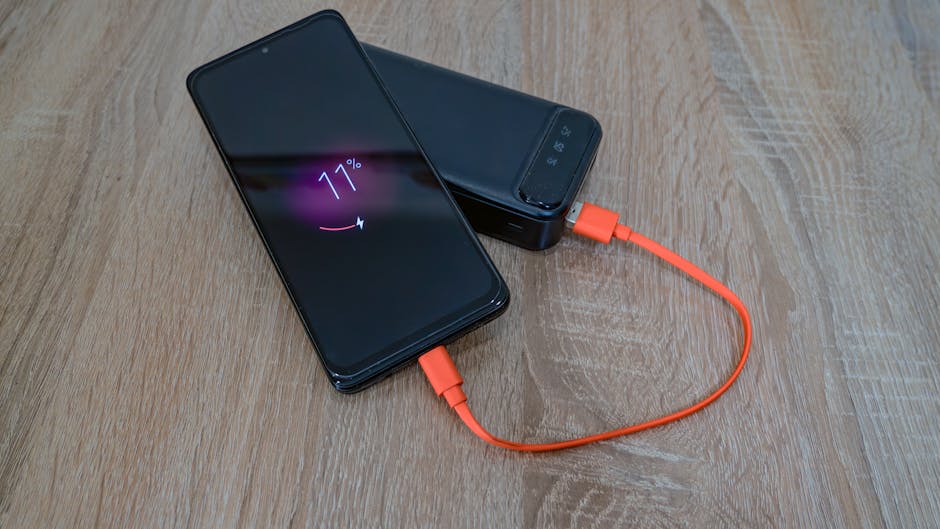
Location services involve your phone using GPS, Wi-Fi, and Bluetooth to triangulate your exact position, which is a process that requires significant radio power. Many system-level services, such as “Setting Time Zone” or “Location-Based Alerts,” constantly poll for your coordinates even when you are stationary in your bed. From experience, the part that actually matters is distinguishing between apps that need your location for functionality and system services that simply gather data for the manufacturer. Furthermore, keeping high-accuracy location tracking active at all times creates a constant stream of data transmission that prevents the device from entering its deepest sleep state.
On most modern smartphones, you can manage this by entering the Privacy and Security menu and selecting Location Services to see which apps have permission to access your position. I recommend switching all non-navigation apps to “While Using” instead of “Always” and diving into the System Services sub-menu to disable non-essential toggles like “iPhone Analytics” or “Popular Near Me.” For Android users, the “Location” menu provides a similar “App Permissions” list where you can revoke access for apps that do not require your coordinates to function. In addition, you should ensure that “Google Location Accuracy” is not excessively pinging your router while you are asleep.
Best for: Extending battery life by preventing the power-intensive GPS hardware from activating for background system tasks.
Key takeaway: Revoking “Always” location permissions ensures that the GPS radio only draws power when you are actively using a map or navigation tool.
3. Push mail synchronization
The “Push” setting for email ensures that the server maintains a constant, open connection with your phone to deliver new messages the very second they arrive in your inbox. This persistent connection is a major contributor to phone battery drain because the cellular or Wi-Fi radio never truly gets a chance to power down completely. While this is helpful for urgent work communications during the day, it is almost entirely unnecessary for most people between the hours of midnight and 6:00 AM. Consequently, the constant handshaking between your mail client and servers like Gmail or Outlook prevents the device from reaching its peak energy efficiency during idle periods.
You can adjust this by going to your Mail or Accounts settings and changing the synchronization method from Push to Fetch. When you select Fetch, you can set a manual interval, such as every 60 minutes, or choose to have the phone only check for new mail when you physically open the app. If you are on an iPhone, this is found under Settings, then Mail, then Accounts, and finally Fetch New Data. On Android, you can find these settings within the individual Gmail or Outlook app settings under the “Sync frequency” or “Account settings” headers. Many practitioners use a scheduled “Do Not Disturb” mode that also restricts these data syncs to save energy.
Best for: Reducing the frequency of cellular radio activation by grouping email downloads into specific time intervals rather than constant streams.
Key takeaway: Switching from Push to Fetch prevents your mail app from maintaining an energy-hungry, constant connection to the mail server.
4. Wi-Fi and Bluetooth scanning
A common mistake here is assuming that because you toggled Wi-Fi or Bluetooth off in your control center, the radios have stopped searching for signals. Most modern phones have a “Scanning” feature enabled by default that allows the device to search for nearby access points or beacons even when the main toggles appear off. This is intended to improve location accuracy and “Find My” network capabilities, but it means your device is constantly emitting and receiving signals all night long. In practice, this hidden scanning can account for a steady one to two percent drop in battery every few hours without providing any benefit to a sleeping user.
To disable this on Android, search your settings for “Scanning” or look under the Location menu for “Wi-Fi scanning” and “Bluetooth scanning” toggles. On iOS, you have to go into the System Services section within Location Services and turn off “Networking & Wireless,” though be aware this may slightly affect how quickly your phone finds Wi-Fi when you wake up. Furthermore, you should verify that your “Find My” settings are optimized to only use the network when the device is actually lost rather than constantly reporting in. Disabling these hidden searches allows the hardware radios to enter a truly dormant state which is critical for minimizing overnight discharge. You can learn more about hardware management in our Android tips archive.
Best for: Users who want to maximize deep sleep by shutting down the hidden radio pings used for background location indexing.
Key takeaway: Turning off background scanning ensures that your Wi-Fi and Bluetooth hardware remains fully inactive when you are not using them.
5. Always-On Display and high brightness
The Always-On Display (AOD) feature keeps a small portion of your screen illuminated at all times to show the time, date, and notifications without you needing to touch the phone. While OLED screens are efficient at lighting only individual pixels, keeping the display controller and a segment of the panel active for eight hours straight consumes a measurable amount of power. What most guides miss is that if your phone is face-up on a nightstand, the light sensor may even keep the AOD at a higher brightness than necessary if there is any ambient light in the room. As a result, this feature alone can contribute significantly to the total energy lost before you wake up.
You can manage this by heading to your Display settings and either toggling the Always-On Display off or setting it to a “Scheduled” mode that deactivates it during your sleep hours. On an iPhone 14 Pro or newer, you can also choose to disable the “Show Wallpaper” option within the AOD settings to further reduce the number of active pixels. Android users will find these options under Display or Lock Screen settings where they can often customize the AOD to only show when the screen is tapped. Additionally, ensuring that your “Auto-Brightness” is enabled will help the phone dim the screen appropriately if you happen to check it in the middle of the night. This simple change is often the most visible way to preserve your charge levels.
Best for: Saving several percentage points of battery life by allowing the display panel to turn off completely for the duration of the night.
Key takeaway: Disabling or scheduling the Always-On Display prevents the screen hardware from drawing a constant, albeit small, current throughout the night.
Ranking the best battery fix
After analyzing these five settings, the most effective change you can make to stop phone battery drain is disabling Background App Refresh. While the other settings certainly contribute to power loss, the unpredictable nature of third-party apps and their background “wakelocks” creates the highest volatility in battery performance. By restricting background refresh, you essentially take control of the CPU and the wireless modem, forcing them to remain in a low-power state until you explicitly grant them permission to work. This provides the most consistent results across both iOS and Android platforms regardless of how many apps you have installed. However, if you are a light app user, the cumulative effect of disabling Wi-Fi and Bluetooth scanning might offer a more noticeable improvement. Ultimately, the best strategy is to audit these settings once and enjoy the compounded benefits of a healthier battery for the remainder of your device’s lifecycle. Implementing these changes takes less than five minutes but pays dividends in daily reliability and long-term hardware health.
Cover image by: Eleonora Vokueva / Pexels