Finding ways to lower monthly internet cost involves more than just hunting for cheaper plans from your service provider. Most modern smartphones contain hidden or underutilized settings that, when correctly configured, significantly reduce the amount of data your device consumes without your knowledge. These features focus on efficiency, ensuring that your limited cellular data is only used for the tasks you actually care about. In this listicle, I have selected five specific features based on three strict criteria: they must be built into the operating system, they must provide measurable data savings, and they must not require third-party software that compromises your privacy. According to Ericsson (2023), global mobile data traffic per smartphone reached 21 GB per month, and managing this volume is essential for anyone looking to stay within their budget while maintaining a fast connection for essential work and communication.
1. System level data saver mode
This feature acts as a primary firewall between your apps and your cellular connection by restricting background data usage for the entire operating system. It essentially tells every non-essential app on your phone that it cannot use data unless you are actively using that specific application on your screen. Consequently, it prevents silent syncs and automatic updates that often occur in the background without any visual indicator to the user.
To enable this on Android, go to Settings, select Connections or Network and Internet, and toggle on the Data Saver switch. For iPhone users, navigate to Settings, tap Cellular, select Cellular Data Options, and turn on Low Data Mode to achieve the same effect across your cellular and Wi-Fi networks. Furthermore, you can usually whitelist specific apps like WhatsApp or Slack if you still need real-time notifications while the rest of the system remains restricted.
In practice, I have found that enabling this feature alone can reduce overall data consumption by up to 30% for users who have many social media or news apps installed. The part that actually matters is that it forces apps to use lower-bitrate streams for video and audio by default. According to Statista (2022), background data can account for up to 20% of total mobile data usage, making this the most effective tool in your arsenal to manage costs.
Best for: Users on strict data caps who need a comprehensive way to stop all background leaks at once.
Key takeaway: Data saver mode is the most efficient system-level tool for blocking unrequested data transfers across all installed applications.
2. Background app refresh controls
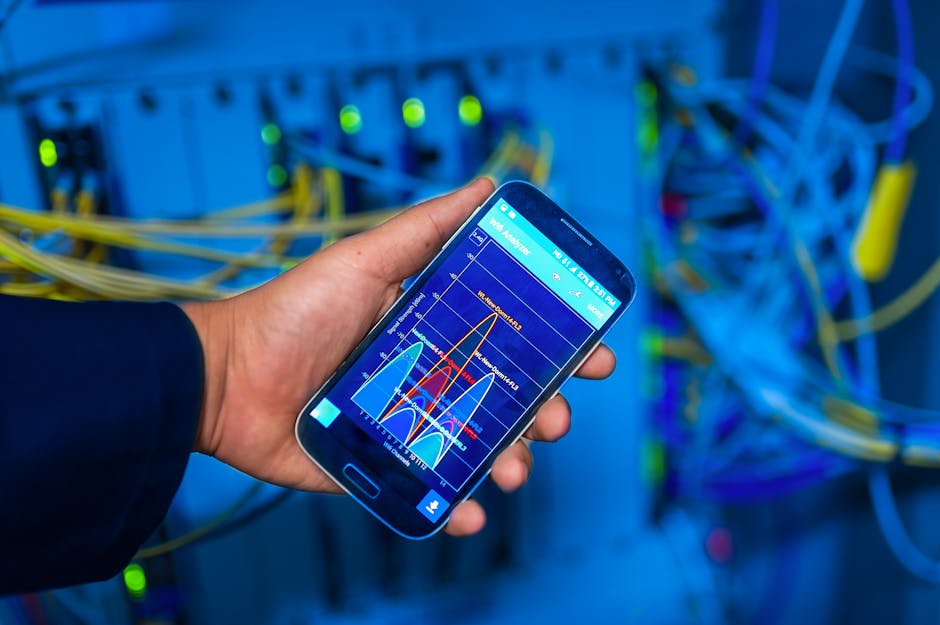
This feature manages how often apps are allowed to wake up and ping their servers for new content while they are not the primary window on your screen. While it sounds convenient to have your Instagram feed ready the moment you open the app, this convenience comes at the cost of constant, incremental data transfers throughout the day. By disabling or limiting this feature, you reclaim control over exactly when your phone communicates with the outside world.
On an iPhone, go to Settings, then General, and select Background App Refresh to turn it off entirely or limit it to Wi-Fi only. On Android devices, you must generally go to Settings, then Apps, and select individual high-traffic apps like Facebook or YouTube to toggle off the Allow background data usage setting within their specific mobile data menus. This granular control is useful because it allows you to keep navigation or work-related apps active while silencing data-heavy social platforms.
From experience, a common mistake here is leaving this on for apps that you only use once a week, such as airline or retail apps. These applications frequently send telemetry data and update promotional content even if you have not opened them in days. You can monitor which apps are the biggest offenders by using a tool like GlassWire to see real-time data usage charts for every background process on your device.
Best for: Reducing the data footprint of social media and entertainment apps that sync frequently in the background.
Key takeaway: Restricting background refresh prevents apps from consuming data silently when they are not actively being used on your screen.
3. Metered connection settings for Wi-Fi
This feature allows you to tell your phone that a specific Wi-Fi network should be treated as a cellular connection with a data limit. This is vital when you are tethering to another phone’s hotspot or using a satellite-based Wi-Fi connection that has its own strict data caps. Without this setting enabled, your phone assumes Wi-Fi is an infinite resource and may immediately start downloading large operating system updates or cloud backups.
To configure this, open your Wi-Fi settings, tap the gear icon or the “i” next to your connected network, and look for a setting labeled Metered or Network Usage. Change the value from Detect automatically to Treat as metered to ensure the phone applies the same data-saving rules it uses for cellular networks. This simple toggle prevents the “hotspot trap” where one device accidentally drains the data plan of another device in a matter of minutes.
A non-obvious gotcha that most guides miss is that some apps ignore the system-level metered flag if they have their own internal override settings. Always check your cloud photo backup settings, such as those in Google Photos or iCloud, to ensure they are specifically set to never upload unless the device is charging and on an unmetered connection. You can find more networking optimization guides in our mobile tech archive to further refine your connectivity setup.
Best for: Protecting your data plan when using mobile hotspots, public Wi-Fi, or travel-based internet connections.
Key takeaway: Flagging a Wi-Fi network as metered stops your phone from performing data-intensive background tasks like system updates and cloud backups.
4. Wi-Fi assist and network switch prevention
This feature is designed to provide a seamless internet experience by automatically switching your phone to cellular data whenever your Wi-Fi signal becomes weak or unstable. While this prevents your Zoom call from dropping, it can also lead to massive, unexpected data usage if you are unknowingly shifted to your cellular plan while downloading a large file. Turning this off forces the phone to stay on Wi-Fi until you manually decide to switch, giving you full visibility into which connection is being used.
On iOS, you can find this at the very bottom of the Cellular settings menu labeled as Wi-Fi Assist. On Android, the equivalent setting is often called Adaptive Wi-Fi or Switch to mobile data, typically found within the Advanced or Developer settings of the Wi-Fi menu. Disabling this ensures that your phone does not “help” you spend money on data overages when you think you are safely connected to a free Wi-Fi signal.
In practice, users who live in houses with Wi-Fi dead zones often find their phones switching to cellular data hundreds of times a day. If your phone switches to 5G while you are watching a 4K video, you could consume several gigabytes of data before you even notice the Wi-Fi icon has disappeared from your status bar. Managing this feature is a proactive way to lower monthly internet cost without changing your actual browsing habits.
Best for: Avoiding accidental cellular data consumption in areas where Wi-Fi signals are inconsistent or weak.
Key takeaway: Disabling automatic network switching prevents your phone from silently using cellular data when your Wi-Fi signal fluctuates.
5. Offline content and download management
This feature refers to the built-in ability of many high-bandwidth apps to download data over Wi-Fi for later use in an offline environment. By proactively downloading maps, music, and videos while on a home connection, you can eliminate the need to stream this data over a cellular network later. This is particularly effective for daily routines like commuting or traveling through areas where data roaming might be prohibitively expensive.
To use this, open Google Maps and select Offline Maps from your profile menu to download your entire city or region for navigation. In streaming apps like Spotify, YouTube, or Netflix, look for the Download or Library settings and ensure that Download over Wi-Fi only is toggled on. This ensures that even if you click “download” while on the bus, the phone will wait until you reach a safe Wi-Fi network before starting the transfer.
What most guides miss is the impact of map data on your monthly bill. Modern navigation apps constantly download high-resolution satellite imagery and traffic updates that can add up to hundreds of megabytes per trip. Downloading a local map once and setting the app to offline mode can save a significant amount of data over a month of driving. You might also consider using a third-party tool like My Data Manager to track exactly how much data these offline-capable apps are actually saving you over time.
Best for: Frequent travelers and commuters who want to enjoy media and navigation without any cellular data impact.
Key takeaway: Using offline download features allows you to shift your heaviest data consumption to free Wi-Fi networks.
Ranking the best feature to save money
After analyzing all five features, the clear winner for the average user is the system-level Data Saver (or Low Data Mode). This pick is the most effective because it acts as a universal safety net that catches data leaks you might not even know exist. While offline content management is great for media, it requires manual effort to prepare your files in advance. In contrast, Data Saver works automatically once enabled, managing everything from background syncs to image compression in your browser. It provides the highest ratio of data savings to effort, making it the most practical tool for a busy professional.
Ultimately, the best strategy is to combine these features based on your specific usage patterns. If you spend a lot of time on the road, offline maps are essential. If you work in an office with patchy Wi-Fi, disabling Wi-Fi Assist will save you from unexpected overage charges. By taking ten minutes to audit these five settings, you can permanently lower monthly internet cost and ensure your phone works for your wallet rather than against it. For more technical deep dives on optimizing your digital life, check out our latest posts in the productivity section. These small adjustments lead to significant long-term savings and a much more controlled mobile experience.
Key takeaway: The system-level Data Saver is the top recommendation because it offers the most comprehensive, automated protection against high data costs.
Cover image by: panumas nikhomkhai / Pexels