You probably spend several hours every month resetting forgotten passwords or typing in strings of random characters you barely remember. This constant friction is no longer a necessary part of the digital experience because authentication technology has evolved beyond the alphanumeric string. Modern security practitioners now rely on cryptographic keys and biometrics to secure online accounts without the mental tax of traditional memorization. According to Verizon (2023), 86 percent of data breaches involve the use of stolen or weak credentials, highlighting the danger of sticking to old habits. Transitioning to a passwordless workflow significantly reduces your attack surface by removing the human element from the login equation. Moreover, Google (2023) reported that passkeys are 40 percent faster than passwords and provide a significantly more robust defense against phishing. This guide walks you through the transition from memory-based security to a seamless, hardware-backed authentication system.
What you will need
- A primary smartphone with biometric capabilities like FaceID or a fingerprint sensor.
- A modern web browser such as Chrome, Safari, or Firefox updated to the latest version.
- A reputable password manager, specifically one like Bitwarden that supports passkey storage.
- A physical security key, for example a YubiKey, to act as a hardware backup.
- Active internet connectivity to sync credentials across your personal devices.
Key takeaway: Modern account security requires a combination of biometric-capable hardware and a specialized vault to manage cryptographic credentials.
Step-by-step guide to passwordless security
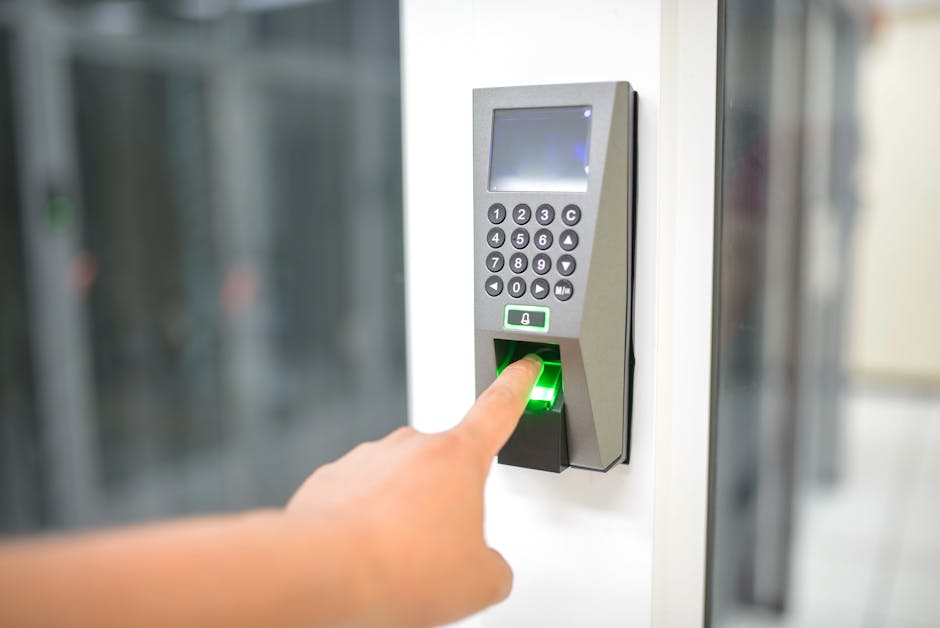
- Install a cross-platform password manager like Bitwarden to serve as your central security hub. This software creates an encrypted environment where you can store passkeys and complex passwords that you will never need to manually type. In practice, using a third-party manager is often better than relying on a browser-based one because it works across different operating systems and mobile apps effortlessly.
- Generate long and unique master credentials for the password manager itself using a passphrase. Choose four or five random words that are easy for you to visualize but impossible for a computer to guess. Since this is the only secret you will actually need to remember, make it distinct and store a physical backup in a secure location like a home safe.
- Activate passkey support on your primary accounts, starting with high-value targets like Google, Microsoft, and Amazon. Navigate to the security settings of each platform and look for options titled passkey or biometric login. When prompted, your device will create a unique digital signature that ties your account specifically to that piece of hardware, eliminating the need for a traditional password.
- Configure a hardware security key as a secondary authentication factor for your most critical services. Plug the key into your USB port or tap it against your phone via NFC when the service asks for proof of identity. What most guides miss is that hardware keys provide an air-gapped layer of protection that cannot be bypassed by remote hackers or sophisticated phishing websites.
- Enable biometric unlock for your password manager on every device you own. Link the vault to your laptop’s fingerprint reader or your phone’s facial recognition so that you can autofill credentials with a single touch. This setup ensures that even if you have thousands of unique accounts, the only action required from you is a simple biometric scan.
- Download and save the emergency recovery codes provided by your password manager and primary accounts. Store these codes on a physical piece of paper or a dedicated offline USB drive rather than keeping them in your email or cloud storage. A common mistake here is neglecting this step, which can lead to a permanent lockout if your primary hardware is lost or damaged.
Key takeaway: Moving to a passwordless system involves centralizing your credentials in a vault and replacing manual inputs with biometric triggers and passkeys.
Common problems and fixes
Passkey sync failure across different ecosystems
You might find that a passkey created on an iPhone does not immediately appear on a Windows laptop. This happens because Apple, Google, and Microsoft often prioritize their own cloud syncing services like iCloud Keychain or Google Password Manager. To fix this, use a third-party manager like Bitwarden that bridges these ecosystems, allowing you to use the same passkey regardless of the hardware you are currently using. Furthermore, ensure that the browser extension for your chosen manager is active and has the necessary permissions to override default browser prompts.
Account does not support passkey technology
Many older websites or niche services still rely exclusively on traditional passwords and have no immediate plans to upgrade. In these cases, use your password manager to generate a 30-character random string and save it in the vault. You will still achieve the goal of not remembering the password because the manager will handle the autofill process for you. In addition, you should check for updates on sites like cybersecurity archive to see when major platforms roll out passkey support.
Biometric hardware malfunction
If your fingerprint sensor or camera fails, you might worry that you are locked out of your digital life. Consequently, you must ensure that your password manager has a fallback master password that you can type manually if the hardware fails. Always test your fallback method once a month to ensure you still recall the master phrase and that the software accepts it without requiring a biometric prompt. This redundancy is essential for maintaining access during hardware transitions or repairs.
Key takeaway: Use cross-platform managers to bridge ecosystem gaps and always maintain a manual fallback for biometric or hardware failures.
When this won’t work
A passwordless approach will struggle in environments where you do not have consistent access to your own personal devices, such as on public library computers or highly restricted corporate terminals. Furthermore, some legacy enterprise software and government portals still require specific manual inputs or physical smart cards that do not yet support modern passkey standards. If you frequently switch between devices you do not own, you will still need to rely on a mobile-based authenticator app or a portable hardware key to bridge the security gap. In these scenarios, the reliance on a personal smartphone becomes a single point of failure that requires careful management. You should also look for updates in the productivity category for tools that help manage these edge cases.
Key takeaway: Shared hardware and legacy government systems often lack the infrastructure to support modern passwordless authentication protocols.
Transitioning to a workflow where you no longer remember passwords is the most significant upgrade you can make to your personal security posture. By leveraging passkeys and high-entropy vaults, you effectively remove the weakest link in the security chain, which is human memory and the tendency to reuse simple phrases. From experience, the initial setup takes about an hour of concentrated effort, but the long-term payoff in saved time and peace of mind is immeasurable. You should no longer view security as a burden but as a seamless background process that respects your time while providing superior protection against modern threats. As the industry continues to move toward a truly passwordless future, being an early adopter ensures you stay ahead of automated credential stuffing attacks. Your next action should be to audit your primary email account and convert it to passkey-only access today.
Cover image by: panumas nikhomkhai / Pexels