Do you struggle with slow home Wi-Fi when streaming your favorite shows or joining crucial video calls? Many people immediately assume they need to spend hundreds of dollars on a brand new mesh network or a high-end router to solve this issue. However, you can significantly improve your network speeds and stability by optimizing the hardware you already own with simple networking strategies. Most routers run on default settings that are rarely ideal for your specific living space or device setup. In addition, physical placement and environmental interference play massive roles in signal degradation. By making a few targeted, zero-cost adjustments to your router location and internal configuration, you can eliminate dead zones and boost performance. Consequently, this guide will walk you through five practical steps to optimize your current network setup without spending a single penny.
What you’ll need
- Your current Wi-Fi router or gateway device
- A smartphone or laptop connected to your network
- Your router’s admin credentials (usually found on a sticker underneath the device)
- A free Wi-Fi analyzer app (such as Wi-Fi Analyzer for Android or AirPort Utility for iOS)
Key takeaway: Gathering your network details and a diagnostic tool beforehand ensures a smooth optimization process.
Step-by-step guide to fix slow home Wi-Fi
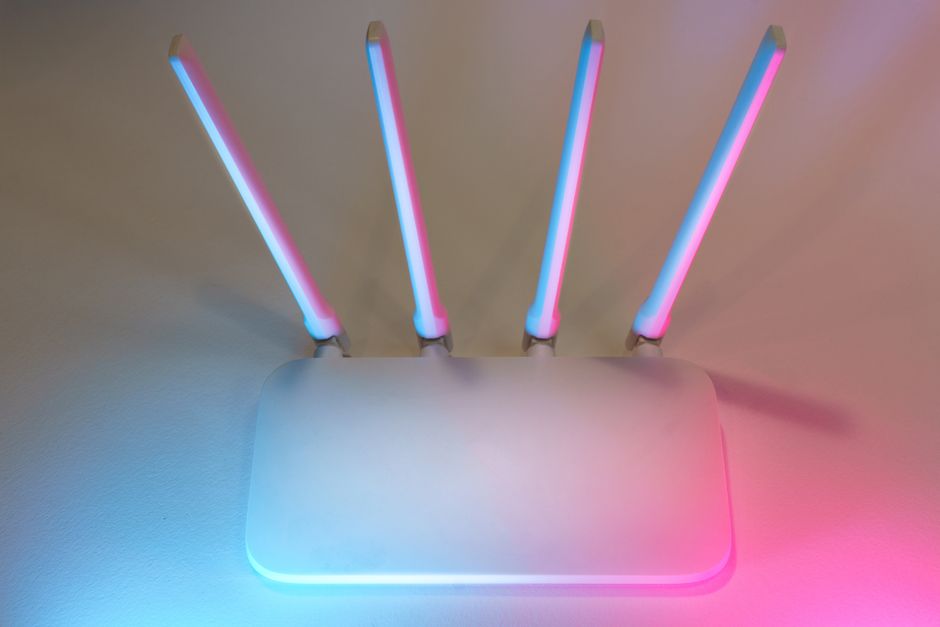
- Relocate your router to a central, elevated position. Avoid placing the device inside enclosed wooden cabinets, behind thick masonry walls, or near large metal appliances like refrigerators. In addition, elevate the router at least three to five feet off the ground, such as on a shelf or table, to allow the signal to propagate downward and outward more effectively across your home. According to a report by Epitiro (2023), physical interference and poor router placement account for up to 40% of Wi-Fi performance loss in typical residential homes.
- Adjust your router antennas to perpendicular angles. Set one antenna completely vertical and the other horizontally to cover both polarization planes. Furthermore, this dual-angle configuration ensures that your receiving devices, which also have varied internal antenna alignments depending on how you hold them, get a stronger and more consistent signal.
- Separate your dual-band wireless channels into distinct network names. Access your router settings and assign different SSIDs to the 2.4 GHz and 5 GHz bands instead of letting the router automatically steer devices. Consequently, you can manually connect high-bandwidth devices like laptops and smart TVs to the faster, less congested 5 GHz band while leaving smart home sensors on the longer-range 2.4 GHz band.
- Switch to a less congested wireless channel manually. Use a free tool like NetSpot or Wi-Fi Analyzer to scan your local airspace for channel overlap from your neighbors’ networks. Therefore, you should manually change your 2.4 GHz channel to 1, 6, or 11, and your 5 GHz channel to a clear DFS or non-DFS channel to bypass local interference.
- Update your router’s firmware to the latest version. Navigate to the administration tab in your router’s web portal and check for pending software updates. In practice, manufacturers regularly release updates that optimize signal processing algorithms and patch security vulnerabilities that might slow down your connection.
- Configure Quality of Service (QoS) rules to prioritize critical traffic. Log into your router’s configuration panel and locate the QoS settings, which allow you to allocate bandwidth based on device or application type. As a result, you can ensure that work laptops and video conferencing applications receive guaranteed bandwidth even when other devices on the network are downloading large files, directly boosting your remote productivity.
- Disable legacy wireless protocols that drag down network speeds. Access your wireless settings and change your network mode from mixed compatibility (such as 802.11b/g/n) to a modern standard only (such as 802.11n/ac/ax). By doing so, you prevent older, slower devices from forcing the entire router to throttle down its transmission speeds to accommodate them.
Key takeaway: Adjusting physical placement and router settings can dramatically improve speeds without any financial cost.
Common problems and fixes
Devices constantly disconnect from the 5 GHz band
If your devices frequently drop their 5 GHz connection, they are likely too far from the router. The 5 GHz frequency offers high speeds but struggles to penetrate solid walls and floors. To fix this, move closer to the router or configure your device to connect to the 2.4 GHz band, which easily passes through physical obstacles at the cost of maximum speed.
The router admin page refuses to load
Furthermore, typing your gateway IP address into a browser sometimes fails to open the login portal. What most guides miss is that custom DNS configurations on your computer, like Cloudflare or Google DNS, can block access to local router addresses. To resolve this, temporarily disable any custom DNS settings or VPN connections on your device, then try navigating to the gateway IP again.
The Wi-Fi signal drops when the microwave is running
Specifically, microwave ovens operate on the 2.4 GHz frequency and can completely flood your local airspace with interference when in use. From experience, the easiest solution is to move your router as far away from kitchen appliances as possible. Alternatively, ensure your critical streaming and gaming devices are exclusively connected to the interference-free 5 GHz wireless band.
Key takeaway: Most persistent connectivity issues can be resolved by identifying external interference and clearing local DNS blocks.
When this won’t work
However, while these free optimizations will resolve slow home Wi-Fi issues caused by configuration or placement errors, they cannot overcome fundamental hardware limitations. For instance, if you live in a three-story brick home, a single ISP-provided router cannot physically project a signal through multiple concrete floors. Similarly, if your router is more than seven years old and lacks Wi-Fi 5 or Wi-Fi 6 compatibility, no amount of tweaking will yield modern broadband speeds. Under these extreme conditions, you will eventually need to transition to a modern mesh network. According to Ookla (2023), the average global fixed broadband download speed is over 80 Mbps, yet many users experience less than half of their rated speed due to local network congestion.
Key takeaway: Hardware limits and structural obstacles will eventually require physical upgrades rather than software tweaks.
Conclusion
Ultimately, optimizing a slow home Wi-Fi network does not require a massive financial investment. By methodically addressing physical placement, splitting your frequency bands, and selecting clean wireless channels, you can reclaim your network’s true potential. Many connectivity issues stem from simple environmental interference and outdated router configurations rather than a lack of raw bandwidth. In addition, maintaining these clean settings ensures your network remains stable as you add more smart devices over time. Your immediate next step is to log into your router’s administrative console and check for any available firmware updates. Once updated, use a free scanning application on your phone to find the clearest channel in your living room and make the switch. Take control of your home network today to enjoy faster, more reliable connections without spending any money.
Key takeaway: Take immediate control of your home network today by applying these five free tweaks to your router settings.
Cover image by: Jakub Zerdzicki / Pexels