If you want to fix slow home Wi-Fi without upgrading your internet plan, you can resolve most performance bottlenecks by optimizing your existing hardware and settings. Many users immediately blame their Internet Service Provider (ISP) and pay for a more expensive tier when their connection drags. However, the bottleneck is rarely the incoming fiber or cable line itself. Instead, physical obstructions, outdated router settings, and wireless interference usually choke your local signal before it ever reaches your laptop or television. According to HighSpeedInternet.com (2023), the average household now connects more than 22 devices to their network, which easily saturates standard router bandwidth. Consequently, managing this internal traffic is the key to unlocking your true speed. By taking a systematic approach to your home network, you can reclaim your bandwidth without spending a single dollar. You can learn more about managing home tech by exploring our networking category.
What you’ll need
To begin, gather these essential tools and access details before modifying your network configuration. You do not need to purchase any expensive hardware to complete this optimization process:
- A computer or smartphone connected to your local network.
- Your router admin login credentials, usually printed on a sticker on the bottom of the physical device.
- A free Wi-Fi analyzer application, such as NetSpot for desktop or Wi-Fi Analyzer for mobile devices.
- An Ethernet cable for a direct connection during configuration if wireless access drops.
Key takeaway: Preparation prevents setup lockouts and ensures you have the diagnostic data required to make smart adjustments.
Step-by-step guide to fix slow home Wi-Fi
In addition, executing these steps in order will systematically eliminate local bottlenecks and optimize how your router distributes bandwidth.
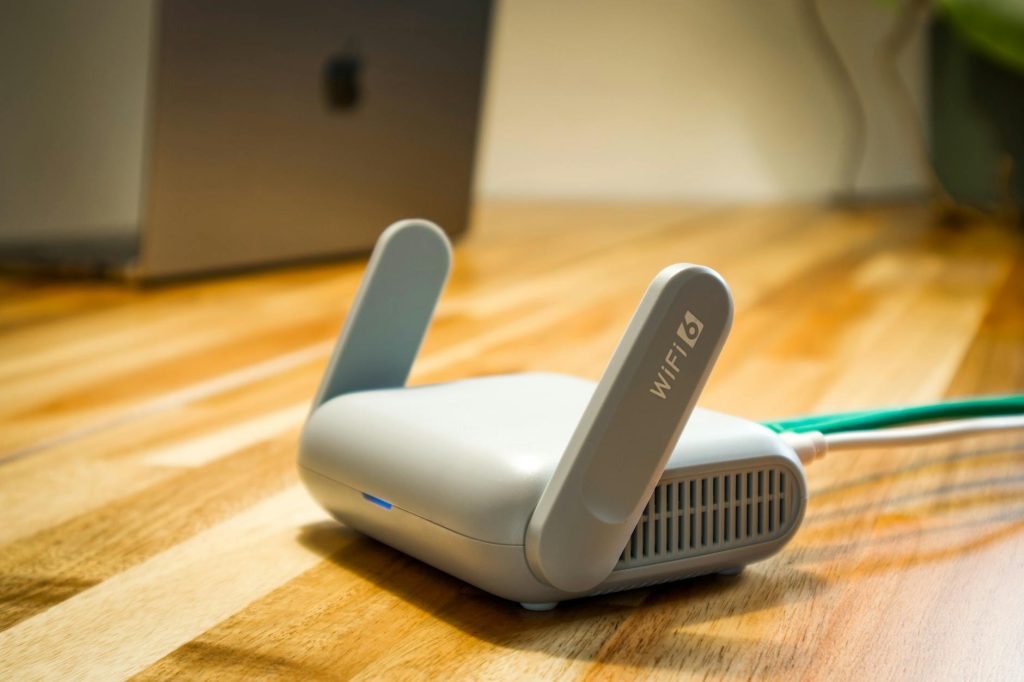
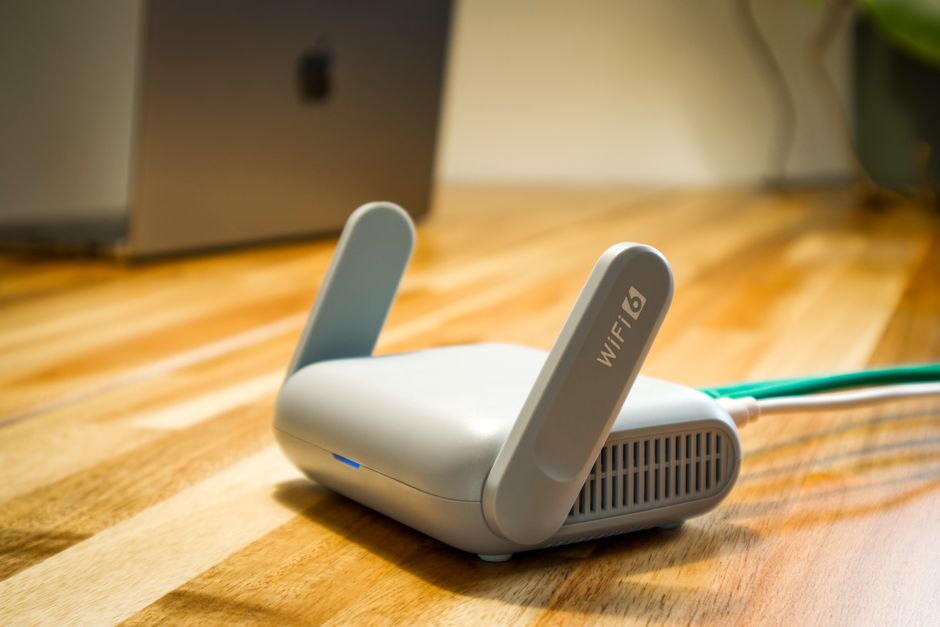
- Elevate and center your wireless router in your main living space. Avoid hiding the device inside cabinets, behind metal appliances, or on the floor. In my experience, raising the router to head height dramatically improves signal propagation throughout the house.
- Separate your 2.4 GHz and 5 GHz network bands into two distinct names. Go into your router settings and assign unique names (SSIDs) to each frequency instead of using a single unified name. Move your low-bandwidth smart home plugs to the slower 2.4 GHz band and reserve the faster 5 GHz band for work laptops and streaming consoles.
- Analyze and switch to less congested wireless channels using your diagnostics tool. Open your channel analyzer app to identify which channels your neighboring networks are actively crowding. Once you find the emptiest channel, manually assign your router to use it rather than leaving the selection on automatic.
- Activate Quality of Service (QoS) rules in your router administrator dashboard. This software feature allows you to prioritize real-time traffic like video calls and gaming over background system downloads. Consequently, background tasks will no longer hijack your bandwidth during critical remote work hours.
- Install the latest firmware updates from your hardware manufacturer. Access your router management console via your web browser to check for pending software updates. These updates patch security vulnerabilities and frequently resolve known performance bugs that slow down local transfers.
- Establish an automated weekly reboot schedule in your system settings. Modern routers are essentially small computers that accumulate memory leaks and cache errors over time. Set your router to reboot automatically at 3:00 AM on a chosen weekday to keep its operating system running efficiently.
Key takeaway: Optimizing channel selection, physical placement, and bandwidth priority resolves the vast majority of local performance issues.
Common problems and fixes
However, even with a clean setup, specific environment variables can disrupt your signal quality. According to a Comcast report (2022), Wi-Fi interference from neighboring networks and household appliances accounts for over 45% of customer speed complaints. Use these targeted fixes when specific issues persist:
Microwave interference on the 2.4 GHz band
Furthermore, this happens because microwave ovens operate on the exact same 2.45 GHz frequency as older Wi-Fi standards. If your video stream buffers every time someone heats up lunch, your microwave shielding is likely degraded. A simple workaround is to force your streaming device to connect exclusively to the 5 GHz band, which remains completely unaffected by household appliances.
Signal dead zones in far rooms
In contrast, physical barriers like brick walls, metal studs, and water pipes will block high-frequency wireless signals. If you experience dropouts in a specific bedroom, relocating the router a few feet to the left or right can change the angle of reflection. Alternatively, you can repurpose an old router as a wired access point to extend coverage without buying a premium mesh system.
Unexplained dropouts on DFS channels
As a result, unexpected dropouts can occur if your router is set to use Dynamic Frequency Selection (DFS) channels on the 5 GHz band. What most guides miss is that routers operating on DFS channels will automatically silent-drop your connection for up to ten minutes if they detect radar signatures from nearby airports or weather stations. To solve this, log into your router and manually select a non-DFS channel, specifically channels 36 to 48 or 149 to 161.
Key takeaway: Identifying the precise cause of interference prevents you from wasting time on irrelevant software configurations.
When this won’t work
That said, these optimization steps cannot bypass the physical limits of your incoming service line if you are trying to fix slow home Wi-Fi. If your ISP package only provides 25 Mbps download speeds, no amount of router tweaking will allow four people to stream 4K video simultaneously. Furthermore, if your router is more than seven years old, its internal processor simply lacks the hardware capacity to manage modern, multi-device household traffic.
Key takeaway: Optimization maximizes your current plan but cannot exceed your contracted bandwidth or upgrade obsolete hardware.
Conclusion
Ultimately, optimization proves that you do not need to pay your ISP for more speed to enjoy a stable internet connection. By taking control of your physical router placement, separating your frequency bands, and avoiding congested wireless channels, you eliminate the actual bottlenecks throttling your performance. These steps cost nothing but a small amount of your time, delivering a highly responsive network that handles modern remote work and entertainment demands.
Therefore, your immediate next step is to log into your router administration panel using the IP address printed on its label. Run a baseline speed test over a wired connection first, then apply these configurations one by one to isolate which change yields the biggest performance boost. If you find this guide helpful, check out our other troubleshooting guides in the networking category to keep your smart home running flawlessly.
Cover image by: Pascal 📷 / Pexels