As a senior tech practitioner, I’ve seen countless users grapple with their smartphones losing charge too quickly. Often, the culprit isn’t a faulty battery or a demanding app, but rather a collection of subtle settings working silently in the background. Understanding these can significantly combat phone battery drain.
For this list, I’ve focused on settings that are frequently overlooked, have a significant impact on power consumption, and are straightforward to adjust. These aren’t just about turning down brightness; they’re deeper configurations that, when optimized, can give you hours back. From experience, overlooking these small tweaks leads to unnecessary charging cycles and diminished device longevity. Let’s dive into the quiet culprits.
1. High refresh rate displays and always-on display
Modern smartphone screens offer incredibly smooth scrolling thanks to high refresh rates (90Hz, 120Hz, or even higher). While visually pleasing, driving the display at these frequencies demands substantially more power from your device’s graphics processor and screen. Similarly, always-on display features, which keep a portion of your screen lit to show time or notifications, consume power continuously, even if it’s minimal per pixel.
To curb this, navigate to your phone’s display settings. On Android, look for “Motion Smoothness” or “Refresh Rate” and switch it from “Adaptive” or “High” to “Standard” (typically 60Hz). For always-on displays (both Android and iOS, if available), find the “Always On Display” setting and either disable it entirely or set it to “Tap to show” or “Show for new notifications.” In practice, most users adapt quickly to 60Hz without significant impact on their daily experience, freeing up valuable battery life. Consumer Reports (2022) noted that disabling an always-on display could extend battery life by up to 10-15% on OLED screens.
Best for: Users who prioritize maximum battery life over buttery-smooth scrolling or constant glanceability for notifications.
2. Precise location services (background usage)
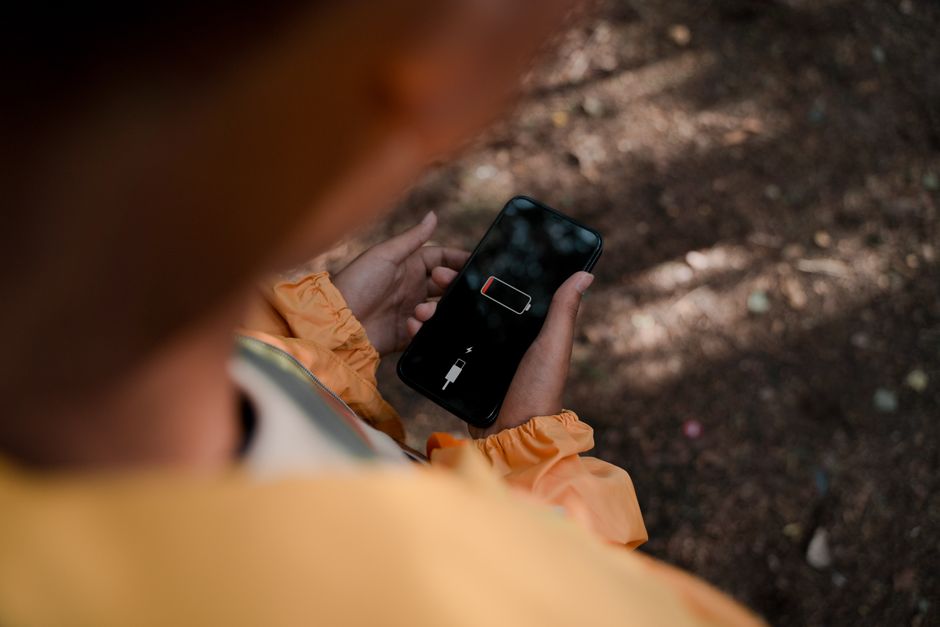
Many apps, from weather to social media, request access to your location. When set to “Always allow” or “Precise location” (on iOS), these apps can constantly ping GPS, Wi-Fi, and cellular networks to determine your exact whereabouts, even when they’re not actively open or in use. This continuous background activity is a major contributor to smartphone battery drain, as location hardware is energy-intensive.
To manage this, head to your phone’s “Location” settings. On both Android and iOS, you can review “App permissions.” For most apps, change permissions from “Always allow” or “While in use” to “Allow only while using the app” or “Ask next time.” For apps where even approximate location is sufficient (like a local news app), consider toggling off “Precise location.” According to a 2023 study by AccuBattery, location tracking can consume up to 15% of your battery life, especially when set to ‘high accuracy.’
Best for: Privacy-conscious individuals and those who don’t rely on constant, precise background location tracking for non-essential apps.
3. Background app refresh and unrestricted data
Your apps are busy even when you’re not using them. Background app refresh allows applications to fetch new content – emails, social media feeds, news updates – in the background, ensuring they’re up-to-date when you open them. Similarly, allowing “unrestricted data usage” means apps can use cellular data freely, even when Wi-Fi is available or when the device is in low-power modes. Both activities wake up your phone’s radios and processor, silently eating battery.
On iOS, go to Settings > General > Background App Refresh and selectively disable it for apps you don’t need constantly updated. On Android, navigate to Settings > Apps > [select individual app] > Battery and choose “Restricted” or “Optimize” background activity. For data usage, check Settings > Network & internet > Mobile network > App data usage and restrict apps that consume excessive data in the background. A common mistake here is thinking closing an app stops its background processes entirely; often, it doesn’t.
Best for: Limiting data usage, prolonging battery life, and regaining control over which apps consume resources when not actively in use.
4. Push email and frequent sync intervals
Having your email, calendar, and contacts instantly “pushed” to your phone as soon as new data arrives is convenient, but it means your phone is constantly listening for updates. Frequent “fetch” intervals for syncing accounts also keep your device’s radios active, drawing power unnecessarily throughout the day. Unless you need instant notifications for every email, this feature is often overkill.
Open your primary email application’s settings (e.g., Mail app, Gmail app) or your phone’s main “Accounts” settings. Look for “Fetch New Data” or “Sync frequency.” Change accounts from “Push” to “Fetch” at longer intervals (e.g., every 30 minutes, hourly, or even manually). For less critical accounts, manual fetching is the most battery-efficient option. From experience, delaying email checks by 15-30 minutes rarely impacts productivity but significantly reduces network activity.
Best for: Users who don’t require instant email notifications and want to reduce constant network activity and server pings.
5. Haptic feedback and vibration intensity
Haptic feedback provides tactile vibrations when you type on the keyboard, interact with system navigation gestures, or receive notifications. While adding a premium feel, the small motor responsible for these vibrations consumes significantly more power than a simple audio alert. High vibration intensity for calls and notifications also contributes to greater battery usage.
To adjust these, go to Settings > Sound & Haptics (iOS) or Settings > Sound & Vibration (Android). You can often find options to disable “System Haptics,” “Keyboard Feedback,” or reduce the vibration intensity for calls and notifications. Turning off keyboard haptics alone can make a noticeable difference for heavy texters. Using a tool like AccuBattery on Android can help you visualize the power consumption of different phone features, including the vibration motor.
Best for: Users who find haptics unnecessary and prefer silent or audible alerts, or simply want to save every bit of power.
6. Wi-Fi and bluetooth scanning (even when off)
Even if you’ve toggled off Wi-Fi and Bluetooth from your quick settings, some phones have advanced features that keep these radios partially active for specific purposes. For instance, Android’s “Wi-Fi scanning” and “Bluetooth scanning” features (often found under Location settings) are designed to improve location accuracy, even when the respective main toggles are off. This means your phone is still actively searching for nearby networks and devices in the background, continuously consuming power.
On Android, navigate to Settings > Location > Location services. Here, you’ll often find separate toggles for “Wi-Fi scanning” and “Bluetooth scanning.” Turn both of these off unless you specifically need them for hyper-accurate location tracking (e.g., in dense urban environments). iOS doesn’t have an identical setting, but users can manage app access to local network scanning via Settings > Privacy & Security > Local Network. Furthermore, periodically checking for a device software update can sometimes offer better power management optimizations.
Best for: Maximizing power savings when you’re not actively connecting to specific networks or Bluetooth accessories and don’t need enhanced location accuracy via these methods.
Mastering your phone’s battery life is less about grand gestures and more about consistent, informed management of these silent drainers. While all six settings contribute to battery longevity, I’ve found that managing **Background App Refresh and Precise Location Services** often yields the most significant and immediate results for the average user. These two features are frequently enabled by default for many apps, and their constant background activity is a persistent draw on resources.
Adjusting these settings offers a tangible improvement in your device’s daily endurance without sacrificing core functionality. It’s a practical step toward getting more out of your phone between charges and ultimately extending its usable lifespan. Take a few minutes to check these on your device today – you might be surprised by the extra hours you gain.
Cover image by: Ron Lach / Pexels