As a senior tech practitioner, I know few things are as frustrating as watching your phone’s battery percentage dwindle before the day is out. You’re constantly searching for a charger, tethered to a wall socket, or carrying a bulky power bank. While there are countless apps promising to “optimize” your battery, many simply add more overhead or collect your data without delivering real benefits. The truth is, the most effective strategies to extend phone battery life are already built into your device and require no special downloads. This guide cuts through the noise to provide actionable steps you can implement right now, leveraging your phone’s native settings and smarter habits.
We’ll focus on practical, no-cost adjustments that significantly impact your daily power consumption. From screen settings to background processes, understanding how your device uses power is the first step toward reclaiming your independence from the charger. These methods apply equally to iOS and Android devices, focusing on the underlying principles of mobile power management. By the end, you’ll have a clear roadmap to keep your phone charged longer, enhancing both your productivity and peace of mind.
What you’ll need
Key takeaway: You only need your existing smartphone and its built-in settings to follow these steps.
- A smartphone (iOS or Android)
- Access to your device’s Settings menu
- A few minutes of your time
Step-by-step
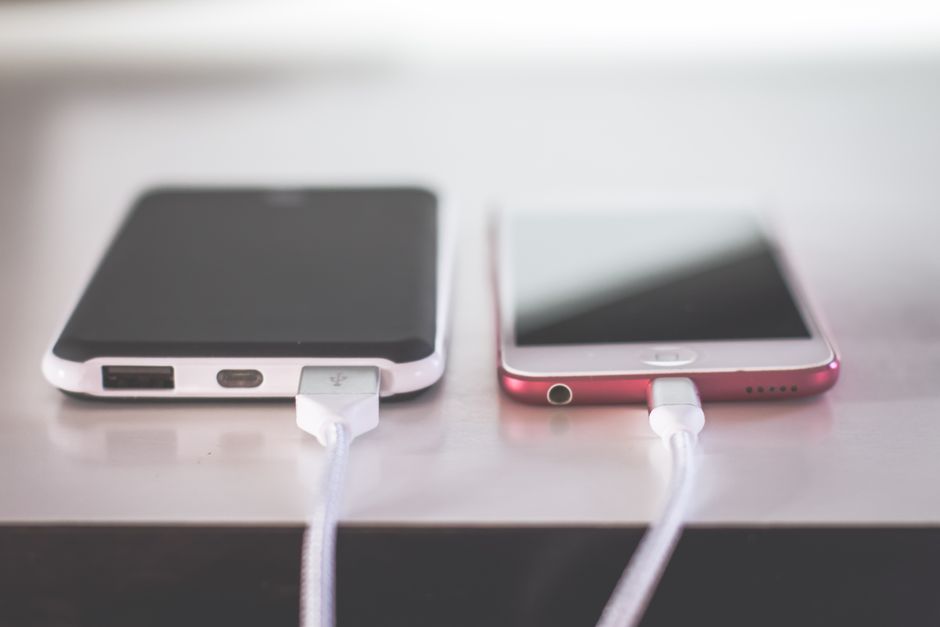
Key takeaway: Systematically adjusting screen, app, and connectivity settings will significantly improve battery endurance.
-
Adjust screen brightness and timeout: The display is often the biggest power consumer. Manually lower your screen brightness to the lowest comfortable level, especially indoors. Furthermore, set your screen timeout to the shortest practical duration, such as 30 seconds or 1 minute, so it turns off quickly when not in use. According to data from Counterpoint Research (2022), the display often consumes the largest share of a smartphone’s battery, sometimes over 50% of total usage, making this a critical first step.
-
Disable background app refresh/activity: Many apps continue to fetch new content or update themselves in the background, even when you’re not using them. Review your app settings and disable background app refresh for apps that don’t need real-time updates, such as social media, news feeds, or shopping apps. This prevents unnecessary data usage and processor activity that silently drains your battery.
-
Manage location services permissions: GPS and location tracking can be significant power hogs. Go into your privacy settings and review which apps have access to your location. For most apps, “While Using the App” is sufficient, or even “Never” for those that don’t need location data at all. This prevents apps from constantly pinging your GPS in the background, which is a common, hidden battery drain.
-
Turn off unnecessary radios (Bluetooth, Wi-Fi, NFC): While convenient, keeping Bluetooth, Wi-Fi, and NFC constantly enabled means your phone is always searching for connections, even when none are available. Toggle these off when you’re not actively using them, particularly if you’re not connected to a device or a known Wi-Fi network. In practice, constantly hunting for Wi-Fi or Bluetooth devices can drain more power than you think, especially in areas with many competing signals.
-
Optimize app notifications: Every notification that lights up your screen or vibrates your phone consumes power. Go through your app notification settings and disable alerts for non-essential apps. Focus on keeping notifications only for truly important communications, reducing both screen-on time and haptic feedback power draw.
-
Utilize dark mode or dark themes: If your phone has an OLED or AMOLED display (common on many modern smartphones), using dark mode can save significant power. These displays light up individual pixels, so black pixels are effectively turned off, consuming no power. This isn’t just an aesthetic choice; it’s a measurable power-saving feature for compatible screens.
-
Enable low power mode or battery saver: Both iOS and Android have built-in modes designed to extend battery life when your charge is low. These modes automatically implement many of the suggestions above, such as reducing background activity, visual effects, and fetch frequencies. Don’t wait until you’re at 20%; enable it proactively when you know you’ll be away from a charger for an extended period. This is often the most impactful single setting to optimize mobile device performance and battery life.
Common problems and fixes
Key takeaway: Understand that settings vary, some apps are inherently draining, and battery hardware eventually degrades.
Settings menu varies by device
The exact names and locations of settings can differ slightly between Android versions (e.g., Samsung One UI vs. Google Pixel’s stock Android) and iOS updates. If you can’t find a specific setting, use the search bar within your phone’s Settings app. Most modern smartphones have a robust search function that will direct you to the right place quickly.
Apps still draining battery
Even after optimizing, some apps might be inherently power-intensive (e.g., video streaming, graphic-heavy games, navigation). Check your phone’s “Battery Usage” section in settings to identify which apps are consuming the most power. If an app you rarely use is high on this list, consider uninstalling it or restricting its background activity even further. A common mistake here is thinking disabling Wi-Fi entirely is always best; sometimes, a stable Wi-Fi connection is more efficient than cellular data, especially if your cellular signal is weak, as your phone has to work harder to maintain a connection.
Battery degradation over time
These tips extend the life of a healthy battery, but they can’t reverse physical wear and tear. Smartphone batteries are consumables and degrade over time. According to Cadex (2023), smartphone batteries typically retain 80% of their original capacity after 300-500 charge cycles, often occurring within 1-2 years of use. If your phone’s battery health has significantly dropped (check your device’s “Battery Health” section, if available), or if it’s an older device, a battery replacement might be the only true fix. Most phone manufacturers or certified repair shops can perform this service.
When this won’t work
Key takeaway: These software tweaks can’t overcome severe hardware degradation or continuous, high-intensity usage patterns.
These methods are incredibly effective for daily usage, but they won’t perform miracles for a severely degraded battery (one that’s lost substantial capacity due to age or numerous charge cycles). Furthermore, if your usage involves continuous, high-intensity tasks like hours of mobile gaming, constant video recording, or always-on GPS navigation for work, the fundamental power draw might simply be too high for these optimizations alone to make your phone last a full day. In such cases, a portable power bank or a battery replacement becomes a necessary consideration, even after applying all best practices for improving productivity and device longevity.
Mastering your phone’s built-in settings to manage battery life is a fundamental skill for any tech-savvy individual. You don’t need to download dubious third-party apps or spend money on tools to gain significant improvements. By systematically adjusting screen brightness, curbing background app activity, being mindful of location services, and intelligently managing your connectivity, you empower your device to work for you longer.
Moreover, embracing habits like using dark mode on OLED screens and proactively engaging low power mode can dramatically shift your charging routine from daily necessity to occasional convenience. These simple, consistent actions not only extend your phone’s immediate uptime but also contribute to the overall health and longevity of your device’s battery. Start with one or two changes today – perhaps dim your screen or review your notification settings – and observe the immediate impact. You’ll quickly appreciate the freedom that comes with a phone that lasts as long as you do.
Cover image by: Steve A Johnson / Pexels