Mastering Google Photos background blur is the fastest way to rescue flat, dated images from your digital archives. Before the era of dual-lens cameras and dedicated portrait modes, most mobile snapshots lacked the shallow depth of field that defines professional photography. According to Statista (2023), Google Photos hosts more than 4 trillion photos, a significant portion of which were taken before modern depth-sensing hardware became standard. Fortunately, the platform now uses advanced machine learning to retroactively calculate depth maps for almost any 2D image. This means you can add a sophisticated bokeh effect to a vacation photo from 2014 or a scanned family heirloom with just a few taps. Consequently, you no longer need a flagship smartphone to achieve high-end aesthetic results. This guide walks you through the precise mechanics of applying and refining these digital depth effects to your older library.
Furthermore, the shift toward AI-driven editing has democratized professional-grade tools for casual users. According to Adobe (2024), roughly 71% of smartphone users now rely on automated AI tools to fix lighting and focus issues in their personal galleries. By understanding how to manipulate these algorithms, you can ensure your edits look intentional rather than artificial. Whether you are using an Android device or an iPhone, the process remains largely the same, provided your app is up to date. This approach allows you to focus on the emotional value of your memories while the software handles the complex physics of light and focus. If you want to explore more about optimizing your device experience, check out our latest resources in the Mobile Apps archive.
What you will need
- An Android or iOS device with the latest version of the Google Photos app installed.
- A stable internet connection to allow the app to process depth maps via the cloud if necessary.
- A Google account with sufficient storage space to save edited copies of your images.
- A photo with a clear subject, preferably one where the person or object is in the mid-ground.
- Access to Google One or a Pixel device if you want to use the most advanced Magic Editor features, though basic blur is widely available.
Key takeaway: Modern hardware is not a requirement for depth effects, but an updated app and a clear subject are essential for the AI to function correctly.
Step-by-step guide to applying blur
- Open the Google Photos app and navigate to the specific older image you wish to enhance. Select the photo so it fills the screen and wait for the high-resolution version to load from the cloud.
- Tap the Edit button located at the bottom center of the interface to open the suite of adjustment tools. Wait a moment for the app to analyze the image components and suggest potential AI-driven fixes.
- Scroll horizontally through the menu options until you locate the Tools category. In my experience, this is where Google hides the most powerful computational photography features like Magic Eraser and Portrait Blur.
- Select the Blur option from within the Tools menu to trigger the depth-mapping algorithm. The app will briefly display a loading indicator as it identifies the foreground subject and the background layers.
- Tap on the specific part of the image where you want the focus to remain sharpest. Most guides suggest tapping the face, but you should actually tap the eyes of your subject to ensure the most realistic transition.
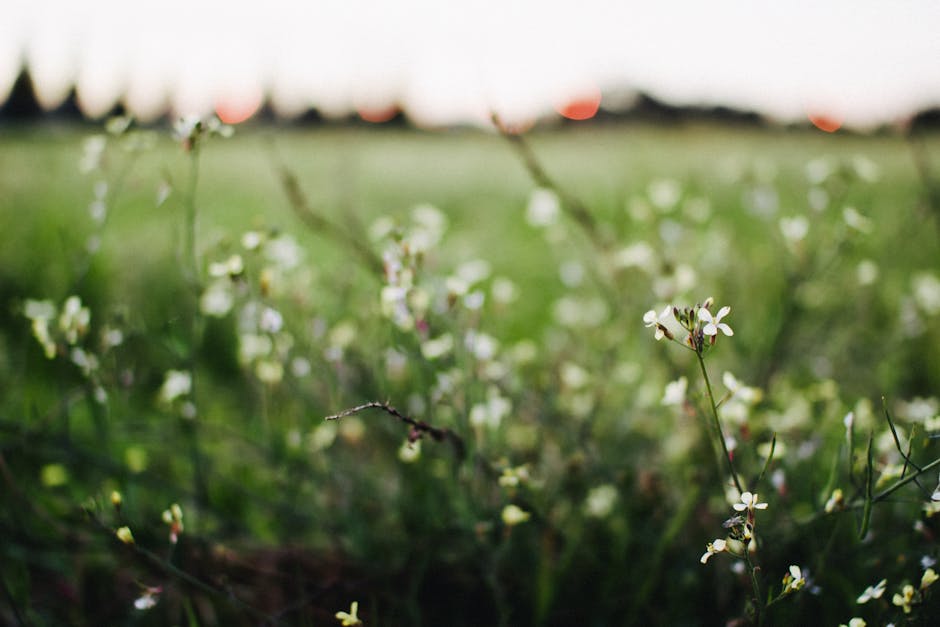
- Slide the Blur intensity bar to the right to increase the amount of background defocusing. Start at a value of 30 and gradually increase it, as the part that actually matters is maintaining a believable edge between the subject and the background.
- Adjust the Depth slider located just below the blur intensity bar to control where the blur begins. This secondary adjustment allows you to keep some of the immediate ground near the subject sharp while blurring the distant horizon.
- Preview the changes by tapping and holding on the image to see the original version for comparison. A common mistake here is over-blurring, which often results in a “cut-out” look that appears obviously fake to the casual observer.
- Tap Done to confirm your adjustments and then select Save Copy to preserve the original file. Always save a copy rather than overwriting the original to ensure you can re-edit the photo as AI algorithms improve in the future.
Key takeaway: Use the Blur and Depth sliders in tandem to create a gradual transition that mimics the physical properties of a wide-aperture lens.
Common problems and fixes
Edge detection artifacts
One of the most frequent issues occurs when the AI fails to distinguish between the subject and the background, particularly around hair or translucent clothing. If you notice a “halo” effect or parts of the subject being blurred incorrectly, try reducing the Blur intensity slider to below 40. In practice, lower intensity levels hide these algorithmic errors while still providing enough separation to make the subject pop. Additionally, try re-selecting the focal point by tapping a slightly different area of the subject to help the AI recalibrate the depth map. You can find more tips on managing these digital assets in our AI Tools section.
Unnatural foreground blurring
Sometimes the app blurs objects in the foreground that should logically remain sharp, such as a table the subject is leaning on. To fix this, you must adjust the Depth slider carefully to push the start of the blur further back into the scene. From experience, the algorithm often assumes everything not near the primary focal point is “background,” so manual intervention is required for complex compositions. If the Depth slider does not resolve the issue, you may need to use the Portrait Light tool to add subtle highlights to the subject, which can sometimes trick the eye into ignoring foreground blur errors.
Low resolution source files
When working with very old photos or low-quality social media downloads, the blur effect can appear pixelated or blocky. This happens because the AI lacks enough data points to create a smooth gradient between the sharp and blurred areas. To mitigate this, try applying a light “Denoiser” or “Sharpen” filter before you move into the Blur tool. While this will not add missing data, it provides a cleaner edge for the depth-mapping engine to work with. If the results are still poor, consider using a third-party upscaler before importing the photo back into Google Photos.
Key takeaway: Most errors in background blur can be masked by lowering the intensity or manually recalibrating the depth starting point.
When this won’t work
The Google Photos background blur tool relies heavily on identifiable subjects and clear perspective cues. Consequently, it struggles significantly with landscape photos that lack a clear foreground object or images where the subject is extremely small in the frame. Furthermore, photos with heavy motion blur or severe lens flare often confuse the depth-sensing AI, leading to erratic results. If your photo is a group shot where people are standing at different distances from the camera, the tool may only be able to keep one person in focus, which creates a disjointed and confusing final image.
Key takeaway: Extremely busy backgrounds or photos lacking a distinct focal point will likely produce poor results with automated blur tools.
Revitalizing your old photo library with modern AI tools is a rewarding process that bridges the gap between past limitations and current technology. By mastering the balance between blur intensity and depth positioning, you turn flat snapshots into evocative portraits that hold their own against modern smartphone photography. In addition to improving the aesthetic quality of your images, this practice helps you curate a more professional-looking digital archive. As AI continues to evolve, these tools will only become more precise and easier to use. That said, the human eye for composition remains the most important factor in any edit. Your next step should be to go into your library, find a photo from at least five years ago, and experiment with the Depth slider to see how much hidden detail you can emphasize. Once you have mastered these basics, you might want to explore more advanced AI editing techniques to further enhance your visual storytelling.
Key takeaway: Retroactive depth editing is a powerful way to modernize your digital legacy, provided you prioritize subtlety over heavy-handed adjustments.
Cover image by: João Jesus / Pexels