Managing Android battery drain is often a frustrating experience for users who find their devices dying before the day ends even with light use. In my years of troubleshooting mobile devices, I have found that the factory default settings are rarely optimized for longevity but rather for maximum feature visibility. Manufacturers want you to see the fastest refresh rates and the most accurate location services out of the box. However, these features come at a heavy cost to your lithium-ion cell health and daily runtime. By adjusting just a few core parameters within the operating system, you can significantly extend the time between charges without losing the functionality you actually care about. This guide provides a practitioner perspective on the internal mechanics that cause power loss and how to stop them permanently.
Furthermore, understanding how your specific hardware interacts with the software is the first step toward a more efficient mobile experience. Many users believe that swiping away apps in the recent tasks view saves power, but this is actually a counterproductive habit. Android is designed to keep apps in a suspended state in the RAM, and forcing them to close only makes the processor work harder to reload them later. Instead, focusing on system-level settings that control hardware radios and background synchronization yields much better results. In the following sections, we will explore the precise changes you need to make to your device to reclaim your battery life.
Optimizing background activity and adaptive battery
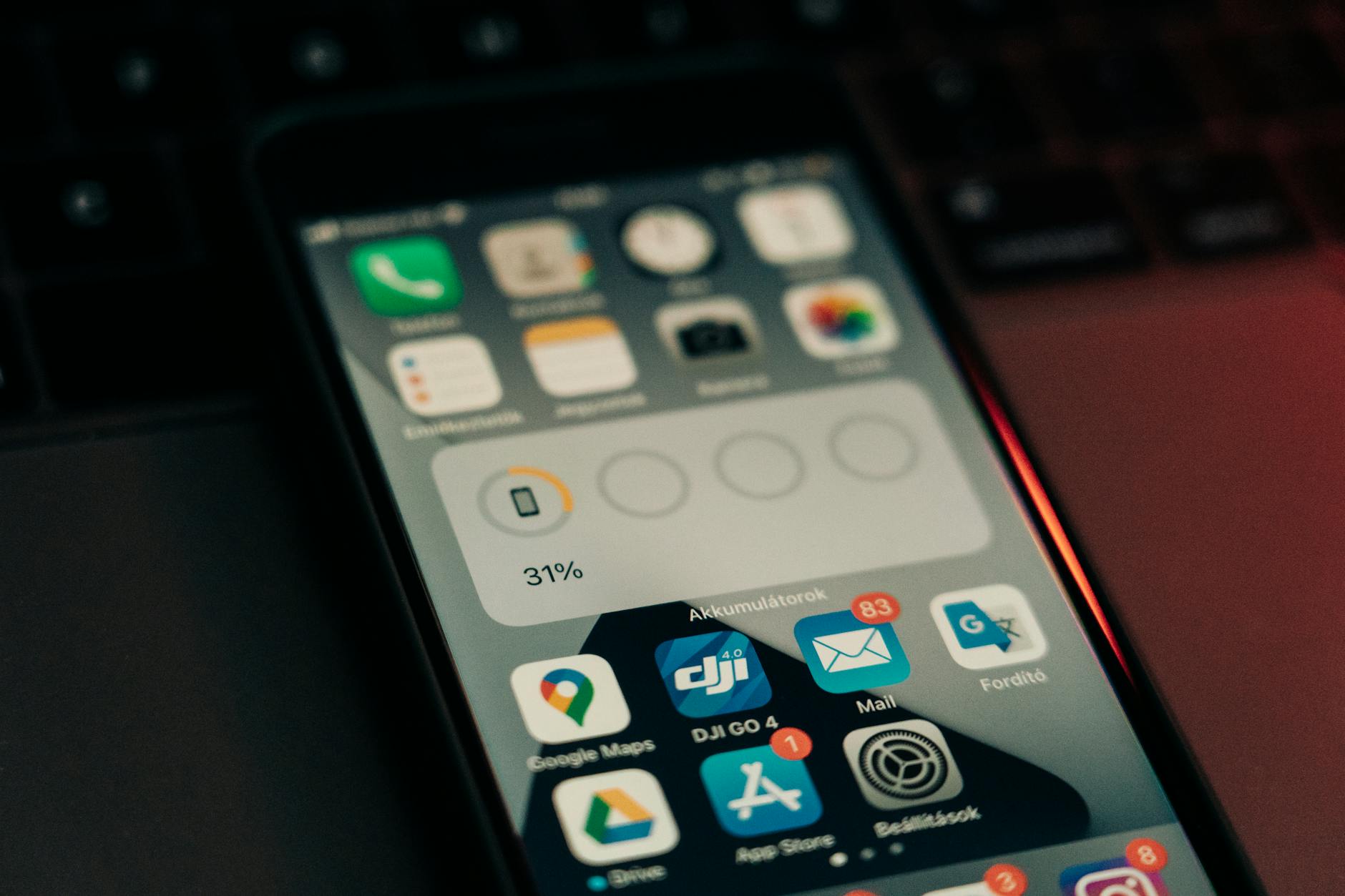
The most effective way to combat Android battery drain is to manage how the system handles apps that you are not currently using. Google introduced the Adaptive Battery feature several versions ago to use machine learning to predict which apps you will open and which can be put to sleep. In addition to this, the system allows you to manually restrict apps that have a history of high power consumption. When you set this up correctly, the operating system effectively “freezes” background processes for low-priority applications.
How to enable and refine Adaptive Battery
In practice, the standard Adaptive Battery setting is only the baseline for power management. You should supplement this by checking the restricted list for apps that constantly wake up the CPU. You can find these settings in your device’s battery menu, usually under a sub-section titled “Background usage limits.” From experience, social media and shopping apps are the most common culprits for silent power draw because they constantly poll servers for notifications.
- Open your Settings app and navigate to the Battery section.
- Select “Background usage limits” or “Adaptive preferences.”
- Ensure the “Adaptive Battery” toggle is turned on.
- Go to “Deep sleeping apps” and manually add apps that you only use occasionally.
- Check “Never sleeping apps” to ensure no high-drain apps have accidentally been given unlimited background access.
What most guides miss is that deep sleeping apps will not receive any updates or notifications until you open them. This is an excellent trade-off for a secondary social media app, but you should never put your primary communication tools like WhatsApp or Slack into this category. Consequently, you must be intentional about which apps you isolate to avoid missing important messages.
Key takeaway: Adaptive Battery works best when combined with manual “Deep Sleep” restrictions for non-essential third-party applications.
Managing display refresh rates and resolution
Modern smartphones often feature high refresh rate displays, typically 90Hz or 120Hz, which provide a smooth scrolling experience. While these look great, they require the GPU to render twice as many frames every second compared to the standard 60Hz. According to research from DxOMark (2022), high refresh rate settings can increase display power consumption by up to 20% depending on the content being viewed. If your priority is surviving a long trip without a charger, this is the first setting to adjust.
The impact of resolution and smooth display
In addition to refresh rates, many flagship phones allow you to change the screen resolution from QHD+ down to FHD+. While the visual difference is negligible on a six-inch screen, the power savings are measurable. A common mistake here is thinking that lower brightness alone will solve your issues. While brightness is a factor, the raw processing power needed to push pixels at high speeds is what truly depletes the battery during active use.
| Setting Type | Performance Impact | Battery Impact |
|---|---|---|
| Standard (60Hz) | Low/Moderate | Minimal Drain |
| Adaptive/High (120Hz) | High/Smooth | Significant Drain |
| FHD+ Resolution | Moderate | Efficient |
| QHD+ Resolution | High Detail | High Drain |
Therefore, switching to a standard refresh rate when you are not gaming or watching high-action video can add significant hours to your daily usage. You can often find more tips on hardware optimization in our Android section. Choosing the right balance between visual fidelity and longevity is a personal choice, but the 60Hz option remains the most stable for long-term endurance.
Key takeaway: Reducing your refresh rate to 60Hz and resolution to FHD+ is the fastest way to lower active-use battery consumption.
Disabling nearby device scanning and wireless radios
Your phone is constantly searching for something to connect to, whether it is a Wi-Fi network, a Bluetooth speaker, or other nearby devices. Even if you turn off Bluetooth in the quick settings, the underlying system often continues to scan for location accuracy purposes. This constant “polling” of the radio hardware is a silent contributor to Android battery drain that most users never notice. These background scans use a specialized chip called the “wireless subsystem” which consumes power even when the screen is off.
Silencing the wireless search
The part that actually matters is that system-level scanning continues even if you think you have disabled these features. To stop this, you must dive into the “Location” and “Connection preferences” menus. Specifically, look for “Wi-Fi Scanning” and “Bluetooth Scanning” under the Location Services tab. These settings allow the phone to use those radios to get a better location fix even when the main toggles are off. For practitioners who want deeper control, using ADB (Android Debug Bridge) to inspect what is waking the system is highly effective.
// Use ADB to check which system services are draining battery
adb shell dumpsys batterystats --charged
// Look for 'Wake locks' and 'Scanning' in the output report
In addition to scanning, you should consider your 5G usage. According to data from Ookla (2023), 5G connections can consume between 6% and 11% more battery than LTE, especially in areas where the 5G signal is weak and the phone has to boost its power to maintain the connection. If you are in a region with spotty 5G, switching your preferred network type to LTE will save a surprising amount of energy. Furthermore, the phone will stop “hunting” for a 5G tower that isn’t really there.
Key takeaway: Disable Wi-Fi and Bluetooth scanning in the Location menu and stick to LTE in weak 5G areas to stop radio-based drain.
Implementing true dark mode for OLED screens
If your Android device has an OLED or AMOLED screen, using Dark Mode is not just an aesthetic choice; it is a hardware-level power-saving strategy. Unlike LCD screens that use a backlight to illuminate every pixel regardless of color, OLED pixels are self-emissive. This means that to display the color black, the pixel simply turns off and draws zero power. A study by Purdue University (2021) found that switching from Light Mode to Dark Mode at 100% brightness can save up to 47% of total battery usage.
Why true black matters
From experience, simply using a “dark gray” theme isn’t nearly as effective as a “true black” theme. Many apps use dark gray to keep some detail, but this still requires the pixels to be turned on. When you are looking for themes or wallpapers, look for those specifically labeled “AMOLED Friendly.” These will maximize the number of pixels that remain in an “off” state. In addition, you should ensure that your system-wide Dark Mode is scheduled to be on permanently rather than just at night.
// If you are an app developer or using a scripting tool like MacroDroid
// You can force dark mode system-wide using this command
adb shell settings put secure ui_night_mode 2
However, if your phone uses an older LCD screen (common in budget devices), Dark Mode will only provide visual comfort and won’t save any battery at all. This is because the backlight stays on for the entire panel even when displaying black pixels. Consequently, it is important to know your screen technology before relying on this method. Most mid-to-high-end Android phones from the last four years use OLED, making this a vital setting for the majority of users.
Key takeaway: Use “True Black” themes on OLED displays to physically turn off pixels and drastically reduce screen-on power consumption.
Restricting location accuracy and GPS polling
GPS is one of the most power-hungry components in any mobile device. While we need it for navigation, many apps request your precise location when they only need a general idea of your city. Each time an app requests a high-accuracy location, the phone has to wake up the GPS antenna, communicate with satellites, and process that data. Over the course of a day, dozens of apps doing this will cause significant Android battery drain.
Adjusting app-level location permissions
The solution is not to turn off location entirely, but to audit which apps have “Always Allow” permissions. You should change most apps to “Allow only while using the app.” For apps that don’t need to know exactly which street corner you are on, like weather or shopping apps, disable the “Use precise location” toggle. This forces the app to use “Approximate location,” which relies on Wi-Fi towers and cell signals rather than the power-intensive GPS hardware.
- Go to Settings > Location > App permissions.
- Review apps in the “Allowed all the time” category.
- Move non-essential apps to “Allow only while using.”
- Disable “Precise Location” for apps like Weather, Browser, and News.
- Check the “Location Services” menu for “Emergency Location Service” and ensure it is on, as this is a safety feature that doesn’t affect daily drain.
In addition, check your “Google Location Accuracy” setting. While it helps with mapping, it frequently sends anonymized location data back to Google servers. Disabling this can save a small but cumulative amount of battery throughout the week. You can find more productivity-focused hardware tips in our Productivity section to help streamline your device usage.
Key takeaway: Downgrading apps to “Approximate Location” and “Only while using” prevents unnecessary GPS hardware activation.
Conclusion
Fixing Android battery drain does not require you to turn your smartphone into a “dumb” phone. By targeting the specific system settings that control hardware radios, screen refresh rates, and background processing, you can maintain a modern experience while significantly extending your device’s lifespan. We have seen that disabling background scanning, choosing LTE over unstable 5G, and utilizing the power-saving nature of OLED screens through Dark Mode provide the most immediate results. These changes work because they address the physics of how your phone consumes energy rather than just surface-level software tricks. Furthermore, being mindful of app permissions ensures that your processor isn’t working overtime for apps you aren’t even using.
As a final step, I recommend that you visit your “Battery Usage” menu at the end of a typical day. This will show you exactly which apps or services were responsible for the most drain in your specific use case. If you see “Google Play Services” at the top, it often indicates that one of the scanning settings mentioned above is still active. Take ten minutes today to audit these six settings, and you will likely notice a cooler-running phone and a much fuller battery icon by the time you head to bed. Your next step should be to check your screen refresh rate and switch it to 60Hz to see the immediate impact on your screen-on time.
Cover image by: Markus Spiske / Pexels