To find a lost Android phone today, you do not need expensive tracking subscriptions or third-party forensic software. Google provides a robust, native suite of tools that work out of the box for almost every modern smartphone. In my experience, most users lose precious time because they panic and forget the specific web portal required to initiate a search. According to Asurion (2022), Americans lose approximately 4.1 million phones annually, yet many of these devices are never recovered simply because owners do not realize how accessible the tracking tools are. Furthermore, if your phone is currently missing, every minute counts toward battery life and data security. This guide focuses on using the Google Find My Device ecosystem to locate, lock, or wipe your hardware from any web browser. You can find more advice on device management in our Android section to keep your hardware optimized.
Statista (2023) indicates that Android holds a global market share of over 70 percent, making these recovery tools essential for the majority of mobile users worldwide. However, the effectiveness of these tools depends heavily on how you interact with the Google ecosystem before and after the device goes missing. If you are reading this while your device is still in your pocket, I highly recommend checking your settings immediately to ensure location services are active. For those currently hunting for a missing device, the following steps will help you leverage Google’s infrastructure to narrow down the search area and protect your private information from unauthorized access.
What you’ll need
- The Google account credentials that are signed into the lost device.
- A secondary device with a web browser, such as a laptop or a friend’s phone.
- An active internet connection on the lost device, either via Wi-Fi or cellular data.
- Location services (GPS) enabled on the missing phone for real-time tracking.
- Power remaining in the device battery to transmit a signal.
Key takeaway: You must have access to your Google account and the device must have some form of connectivity for remote tools to function.
Step-by-step
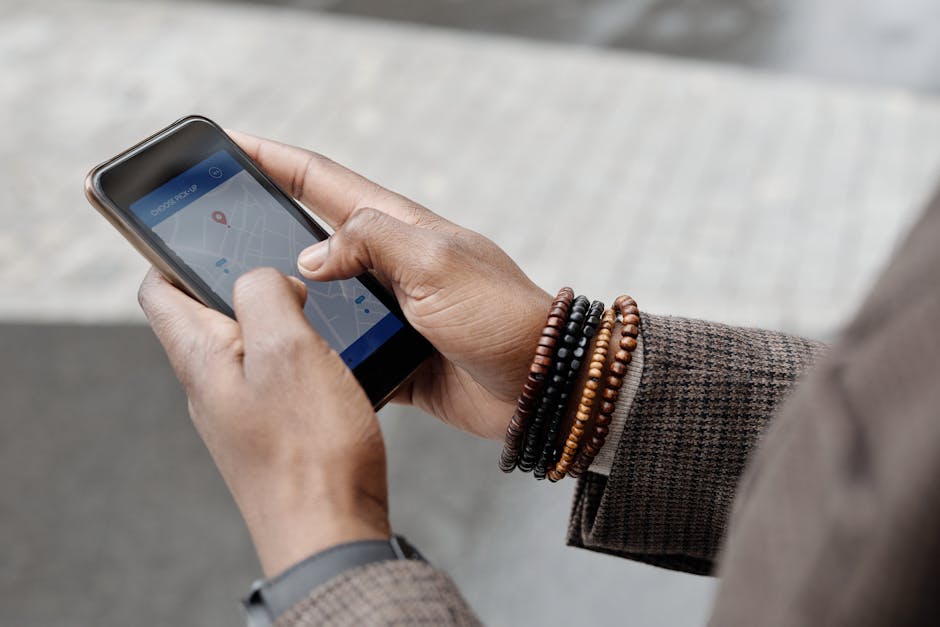
- Navigate to the official Google Find My Device website using any modern web browser. Use a private or incognito window if you are using a public computer to ensure your credentials are not saved. This portal is the primary command center for all Android-related recovery actions and provides a map interface for tracking.
- Sign in using the primary Google account associated with your lost smartphone. Ensure you use the exact email address used for the Play Store on that device to see the correct hardware list. If you have multiple accounts, you may need to switch between them using the profile icon in the top right corner.
- Select your missing phone from the list of devices displayed at the top or side of the screen. Google will immediately attempt to contact the device and request its current GPS coordinates. In practice, the accuracy of GPS can vary by 20 meters depending on building density and satellite visibility, so use the map as a general guide rather than an exact spot.
- Review the device status information, including the last seen timestamp and the name of the Wi-Fi network it is connected to. This data helps you determine if the phone is still at a known location, like an office or a restaurant, or if it is moving. If the battery level is low, prioritize your recovery actions before the device shuts down completely.
- Trigger the “Play Sound” option if the map shows the phone is nearby but you cannot see it. This command forces the device to ring at maximum volume for five minutes, even if it was previously set to silent or vibrate. Listen carefully for the tone and move through the area to triangulate the sound.
- Secure the device remotely by selecting the “Secure Device” option if you suspect it is in a public place. This allows you to lock the phone with your PIN or password and sign out of your Google account while keeping the tracking active. You can also display a recovery message or a secondary phone number on the lock screen for anyone who finds it.
- Erase the device as a last resort if you believe the phone is stolen or unrecoverable. This action performs a factory reset, deleting all photos, messages, and apps to prevent data theft. What most guides miss is that once you erase the device, Find My Device will no longer work, so only use this when recovery is impossible.
Key takeaway: Following these steps in order allows you to find the device locally or protect your digital identity if the hardware is gone for good.
Common problems and fixes
The device location is not available
This usually happens because the phone has no internet connection or the battery has died. In my experience, if the device was recently online, Google will still show the “Last Known Location,” which can give you a starting point for your search. Check nearby businesses or public Wi-Fi hotspots you frequent, as the phone may have automatically connected there before the signal was lost. If the phone is off, your only option is to wait for it to be powered back on or to use the “Secure Device” command, which will execute as soon as the phone reconnects to the web.
Two-factor authentication is blocking your login
A common mistake here is having your lost phone as your only method for two-factor authentication (2FA). If Google asks for a prompt on your phone to let you into the tracking portal, you are stuck in a loop. To fix this, look for the “Try another way” link on the login screen to use backup codes you may have saved or a secondary email address. If you do not have these, you might need to log in from a device that Google already recognizes, such as your home computer, where 2FA might not be required.
The map shows an incorrect or old location
If the map shows a location from several hours ago, the device is likely offline or moving through an area with poor GPS reception. Furthermore, high-rise buildings often cause “multipath interference,” where the signal bounces off glass and steel, showing the phone blocks away from its real position. Refresh the browser page every few minutes to see if a more accurate “ping” comes through. In practice, look for the “Last Seen” text; if it says “Just now,” the map is current, but if it shows a time, the phone has since moved or disconnected.
Key takeaway: Most tracking failures stem from connectivity or 2FA issues, which require pre-planned backup access or patience while waiting for a signal.
When this won’t work
Remote tracking will fail if the device has been factory reset by a third party before you could lock it, although “Factory Reset Protection” (FRP) usually prevents them from using the phone without your original credentials. Furthermore, if the SIM card has been removed and the phone is not connected to Wi-Fi, it cannot receive your commands. If the device was intentionally stolen by a sophisticated actor who uses a Faraday bag to block signals, free tools will be unable to communicate with the hardware until it is removed from the shield. In these extreme cases, you should report the IMEI number to your carrier and local law enforcement. You can also explore our Security archive for more tips on hardening your digital life against theft.
Key takeaway: Physical tampering, battery death, and factory resets are the primary reasons free tracking tools might fail to find a lost Android phone.
Losing a smartphone is a significant security risk, but Google’s native tools offer a powerful defense against both accidental loss and theft. By acting quickly and using the Find My Device portal, you can often recover your hardware or, at the very least, ensure your private data remains private. The part that actually matters is your readiness; having a backup plan for 2FA and knowing your Google credentials by heart can make the difference between a minor inconvenience and a total loss of your digital identity. Statista (2023) research highlights the growing importance of mobile security as more of our lives transition to these devices, making these free tools more valuable than ever.
Now that you understand how the recovery process works, your next action should be a “dry run.” Open the Find My Device portal on your computer right now and ensure your current phone appears correctly and that the location is accurate. If it does not show up, check your device settings under “Security” or “Google” to ensure Find My Device is toggled on. Taking five minutes today to verify your settings will save you hours of panic if your phone ever goes missing in the future. Stay proactive about your mobile security by regularly auditing which devices have access to your primary Google account.
Cover image by: Theo Decker / Pexels