Few things match the frustration of Wi-Fi dropping connections right in the middle of an important video call or an intense gaming session. This frequent instability often forces you to restart your router, but that reboot only serves as a temporary band-aid rather than a permanent fix. To solve this problem for good, you must understand the underlying wireless mechanics that dictate signal reliability. In this article, we will examine why your local network drops signal, how to diagnose the root cause, and how to configure your hardware for a stable connection. By understanding how radio frequencies interact with physical environments and neighboring networks, you can transition from random troubleshooting to targeted optimization. While hardware failures do occur, the vast majority of wireless dropouts stem from preventable configuration mismatches and environment issues. Let us dissect the actual mechanics of wireless stability so you can establish a reliable home network.
What is actually going on when signals fail
To begin with, we must look at what happens at the network layer when your connection dies. When you notice a dropout, your device is usually failing to complete a basic handshake with your wireless access point. Therefore, the operating system registers a disconnect, or the application freezes due to severe packet loss. This interruption often traces back to physical interference or IP address conflicts rather than a total hardware failure. If you want a stable connection, you must learn to identify whether the breakdown is occurring at the physical layer or the logical layer.
In addition, routers manage traffic using Dynamic Host Configuration Protocol, which leases IP addresses to devices for set periods. If your router experiences a software glitch, it might fail to renew these leases properly, leading to sudden disconnections. Furthermore, if you have multiple routers or extenders on the same network, they might attempt to assign the same IP address to two different devices, causing a collision that drops both connections instantly.
Packet loss versus complete disconnection
For example, compare a laptop that completely disconnects from the SSID to a laptop that remains connected but cannot load web pages. The former indicates a security handshake failure, poor signal strength, or physical range issue, while the latter represents a DNS failure, routing loop, or congested channel routing.
Furthermore, in my experience, users often confuse these two states, leading them to replace perfectly functional routers when a simple DNS change or static IP reservation would fix the issue. Understanding this distinction saves hours of unnecessary troubleshooting and prevents you from spending money on unnecessary upgrades.
Key takeaway: Distinguishing between physical signal drops and IP configuration failures allows you to target the correct layer of your network stack.
Why you experience Wi-Fi dropping connections
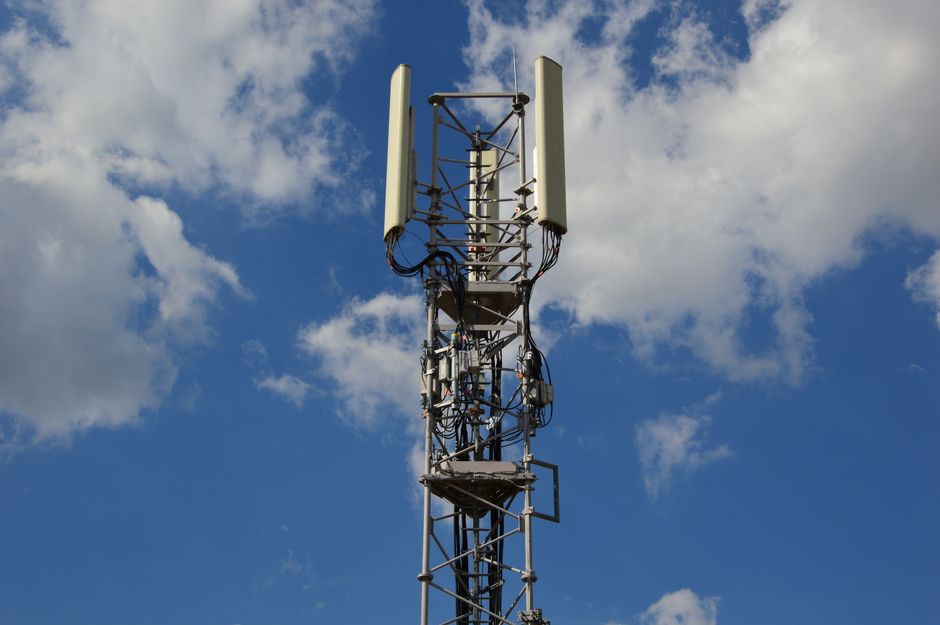
Furthermore, understanding the environmental factors behind Wi-Fi dropping connections helps prevent future performance bottlenecks. Your wireless router transmits data over radio waves, which must compete with physical obstacles and other electronic devices. According to a study by Comcast (2022), the average household now connects more than 22 devices to their home network, dramatically increasing channel congestion. This high density causes packet collisions as devices scream over one another on the same frequency.
Consequently, routers operating on the highly crowded 2.4 GHz band suffer the most dropouts. This band only has three non-overlapping channels, meaning your neighbor’s baby monitor, microwave, or router can easily drown out your signal. On the other hand, the 5 GHz band offers more channels but struggles to maintain stability when devices move too far from the access point.
The hidden impact of USB 3.0 interference
For instance, a highly technical gotcha that many practitioners overlook is the electromagnetic noise generated by USB 3.0 ports. When you plug an unshielded external hard drive or a USB hub into your router or laptop, the port radiates noise in the 2.4 GHz spectrum.
Therefore, this specific interference can completely block nearby wireless signals, causing immediate drops on devices located just a few feet away. Moving your external drive further away using a longer cable or switching to shielded cables resolves this elusive hardware issue instantly.
Key takeaway: Massive device density and localized electromagnetic interference are the primary drivers of modern wireless dropouts.
The physical environment and distance bottleneck
However, we cannot ignore the physical architecture of your home when analyzing wireless signal degradation. Radio frequencies lose power as they pass through solid objects, a phenomenon known as attenuation. According to Epitiro (2023), physical obstructions and distance cause over 40% of Wi-Fi performance drops in residential environments. High-frequency signals like 5 GHz and the newer 6 GHz bands provide fast speeds but suffer from poor penetration capabilities.
Indeed, a signal that must pass through brick, concrete, or metal-backed mirrors will drop significantly in quality. When the signal strength drops below a certain threshold, your device will drop the connection entirely and attempt to scan for a stronger alternative, causing a brief outage.
Concrete walls versus drywall attenuation
For example, a standard drywall partition absorbs roughly 3 to 4 decibels of signal strength, which is relatively minor and rarely causes drops. In contrast, a solid concrete wall or brick chimney can absorb up to 15 to 20 decibels, effectively killing a 5 GHz connection.
A common mistake here is placing the router in a basement, inside a metal media cabinet, or in a utility closet. This placement guarantees poor coverage and frequent dropouts across the rest of the house because the signal must battle dense materials right at its source.
Key takeaway: High-frequency bands require clear line-of-sight or minimal physical barriers to maintain a stable, uninterrupted connection.
What to do about it to restore stability
On the other hand, resolving these dropouts does not require expensive hardware upgrades if you configure your settings correctly. The part that actually matters is auditing your local RF environment to find clean spectrum. You can use free tools like NetSpot or Wi-Fi Analyzer to visualize which channels your neighbors are using. Once you identify the least congested channels, log into your router administration panel to set them manually.
Therefore, you bypass the poorly optimized automatic channel selection algorithms built into consumer routers, which often make terrible routing decisions. For deeper hardware issues, consult our detailed hardware troubleshooting guides to isolate mechanical faults from configuration errors before purchasing replacement gear.
Manual channel selection versus automatic optimization
For comparison, automatic channel switching often causes short disconnects as the router moves all clients to a new frequency to avoid temporary interference. By choosing a fixed, non-overlapping channel like 1, 6, or 11 on the 2.4 GHz band, you prevent these disruptive, automatic hops.
In addition, separating your 2.4 GHz and 5 GHz networks into different SSIDs prevents dual-band devices from constantly bouncing between bands, which is a frequent cause of connection drops on modern smartphones.
Key takeaway: Taking manual control of your router channel configurations and band assignments eliminates the primary software causes of dropouts.
Conclusion
Ultimately, addressing Wi-Fi dropping connections is almost always a matter of resolving configuration or environmental issues rather than replacing hardware. By analyzing whether your dropouts stem from physical attenuation, channel congestion, or IP address conflicts, you can apply targeted remedies instead of relying on repetitive router reboots. Remember to separate your frequency bands, manually assign non-overlapping channels, and keep high-speed access points clear of dense physical barriers. For users seeking absolute reliability, transitioning stationary devices like smart televisions and desktop computers to wired Ethernet connections remains the gold standard. This strategy frees up precious wireless bandwidth for your mobile devices. If you apply these systematic adjustments, you will establish a resilient home network that keeps your devices connected when it matters most. Take fifteen minutes today to log into your router and audit your channel settings for immediate stability improvements.
Cover image by: Ulrick Trappschuh / Pexels