When you notice that your laptop fan is always loud, it is rarely a sign that your computer is just working hard. Instead, it is a desperate cry from your hardware to manage heat buildup caused by internal inefficiency or software bottlenecks. Most modern laptops use thermal sensors to throttle fan speeds based on real-time temperature data. When the system detects heat levels exceeding safe thresholds, it ramps up the cooling fans to prevent permanent silicon damage. In my experience, users often ignore this persistent noise until the machine begins to lag or shuts down unexpectedly. This guide explores the mechanical and digital factors that drive your cooling system to run at maximum capacity, helping you diagnose whether you have a physical blockage or a software-driven thermal runaway situation.
What is actually going on inside your machine
The physics of heat dissipation
At its core, a laptop is a dense package of components that generate significant energy. Your CPU and GPU are the primary heat sources, transferring thermal energy through copper heat pipes to a heat sink. The laptop fan then forces cool air across these fins to dissipate that heat out of the chassis. When the fan spins at high RPMs, it is simply trying to keep up with the rate of heat production. According to Intel (2023), modern processors can reach junction temperatures exceeding 100 degrees Celsius under load, necessitating constant airflow to maintain clock speeds. If the airflow is restricted, the sensors trigger a fan speed increase as the first line of defense before the system forces a hard power-off to protect the motherboard circuits.
Key takeaway: The noise you hear is a regulated response to rising internal temperatures designed to keep your processor within safe operating limits.
Why your laptop fan behaves this way
The role of dust and physical obstruction
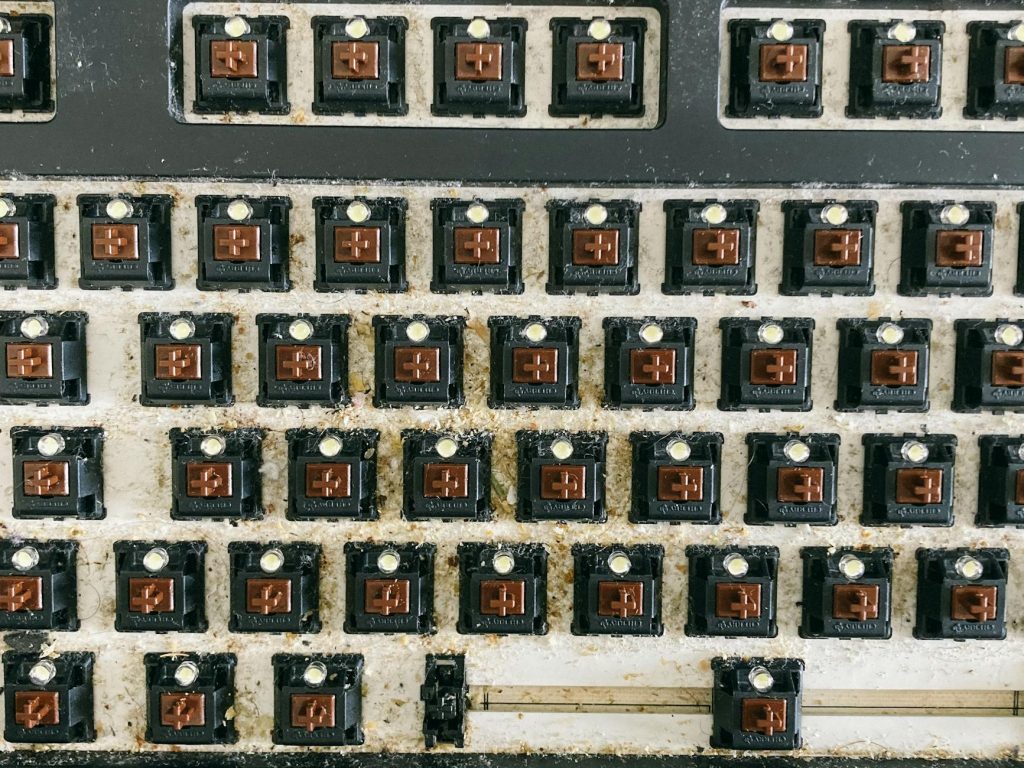
The most common physical culprit for a loud fan is dust accumulation. Over time, fans pull in environmental debris, which eventually creates a felt-like barrier across the exhaust vents and radiator fins. Once this mat forms, the fan cannot push air through the heat sink effectively, forcing it to run at higher speeds for longer durations to achieve the same cooling effect. Furthermore, using a laptop on soft surfaces like beds or carpets suffocates the intake vents, creating a closed-loop system where the machine inhales its own exhaust. A common mistake here is assuming that because the exhaust feels warm, it must be working correctly, but the lack of resistance-free airflow is exactly what keeps the fans pinned at maximum volume.
Key takeaway: Accumulated dust and blocked air intakes force fans to work twice as hard to move half the air volume.
What software factors drive the heat
Background processes and resource-heavy tasks
Sometimes the hardware is fine, but the software is demanding more power than necessary. Applications running in the background, particularly those with poor optimization or memory leaks, keep your CPU usage constantly elevated. If you keep twenty tabs open in a browser like Chrome, or if you have hidden background tasks like indexing services running, your chip never enters an idle state. According to Microsoft (2024), background app management is a leading cause of unexpected thermal spikes on modern hardware. Furthermore, high-definition video rendering or poorly written web scripts can force your integrated GPU to work constantly, causing a localized heat spike that triggers the cooling system even when you aren’t doing heavy computing work.
Key takeaway: Software processes that keep your CPU active prevent it from downclocking, leading to sustained heat generation and constant fan noise.
How to address the noise problem
Evaluating cooling effectiveness
The part that actually matters is distinguishing between a dirty machine and one under too much load. Start by using a monitoring tool like HWiNFO to check your core temperatures while the system is idling. If your idle temperatures are above 50 degrees Celsius, it is a strong indicator of dust buildup or failing thermal paste. If your temperatures are low but the fan is still screaming, check your power settings. Many manufacturers include proprietary software that forces a “Performance Mode,” which prioritizes cooling over silence. Switching this to “Balanced” or “Power Saver” mode through your control panel or hardware utility can often solve the issue without affecting your daily productivity. In practice, most users find that cleaning their vents with compressed air resolves the noise issue entirely.
Key takeaway: Identifying whether the cause is thermal efficiency loss or aggressive power profiles is the first step in restoring quiet operation.
Conclusion
A loud cooling system is a diagnostic indicator that your machine is fighting to maintain its operating temperature. Whether the issue stems from a physical layer of dust insulating your heat sink or a runaway software process pinning your CPU at 90% usage, you have the agency to intervene. Start by checking your active processes to rule out software, then move to a physical inspection of your intake and exhaust ports. By maintaining your laptop’s cooling path and managing your background tasks, you can extend the lifespan of your hardware and restore a quiet working environment. For the best result, schedule a physical cleaning of your fan assembly every six months using a can of compressed air. Your components will last longer, and your workspace will be significantly quieter during your daily workflow.
Cover image by: Anete Lusina / Pexels